
KPI Framework
KPI Configuration & Tier Association
Overview
The Decisyon LOOP KPI Module provides a robust framework for defining, grouping, and contextualizing Key Performance Indicators across your industrial hierarchy. The configuration architecture is built on three pillars:
Classification: Organising KPIs into Categories and Groups to ensure data structure and ease of reporting.
Definition: Creating individual indicators with specific attributes like naming conventions, descriptions, and sort orders.
Contextualization (Tier Association): Mapping KPIs to specific modules, production lines, and Tier levels (e.g., Tier 1, Tier 2). This ensures that the right data is presented to the right stakeholders during operational meetings.
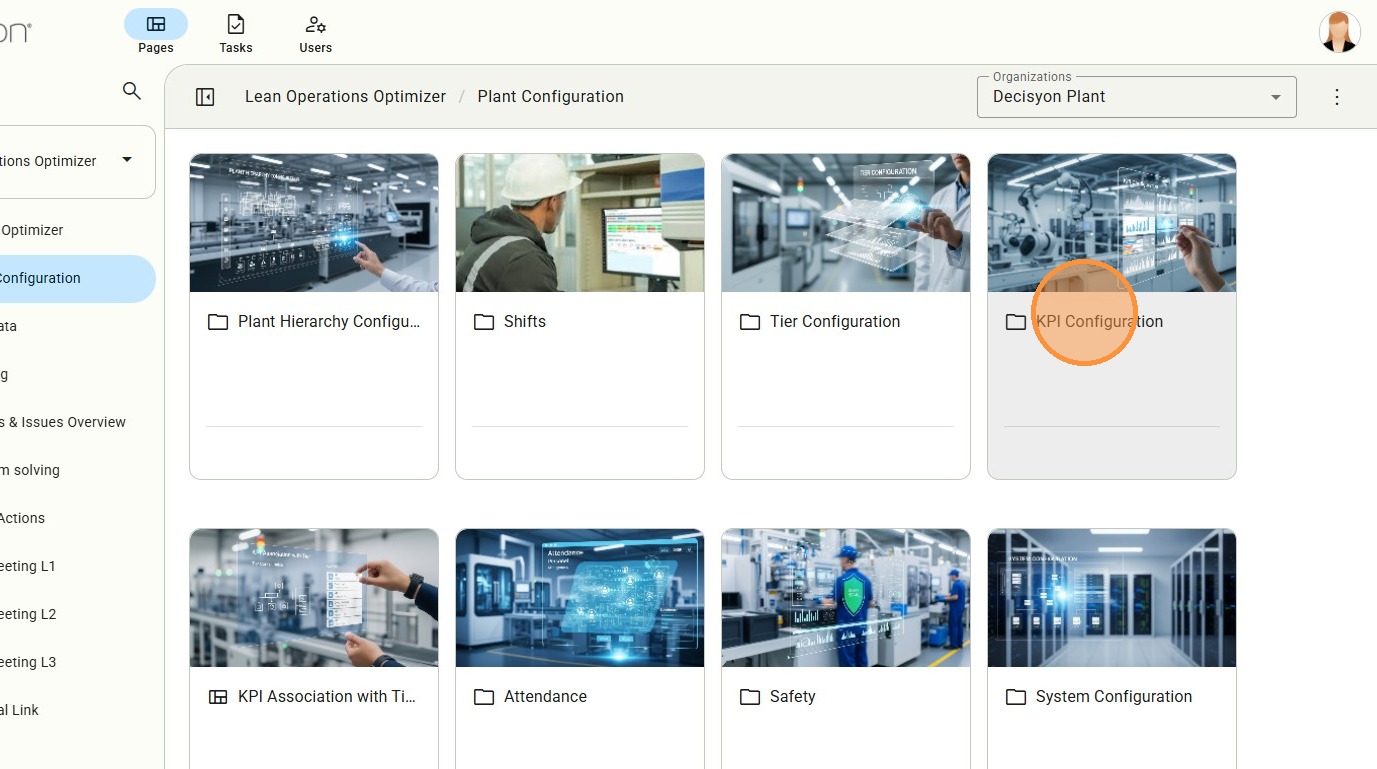
System Note: Certain entities, such as the first five KPI Categories and the "Safety Event" KPI, are system-generated and locked to maintain core platform stability.
How to...
KPI Category Management
The KPI Category level is the highest tier of classification. The system displays a mix of standard and custom categories.
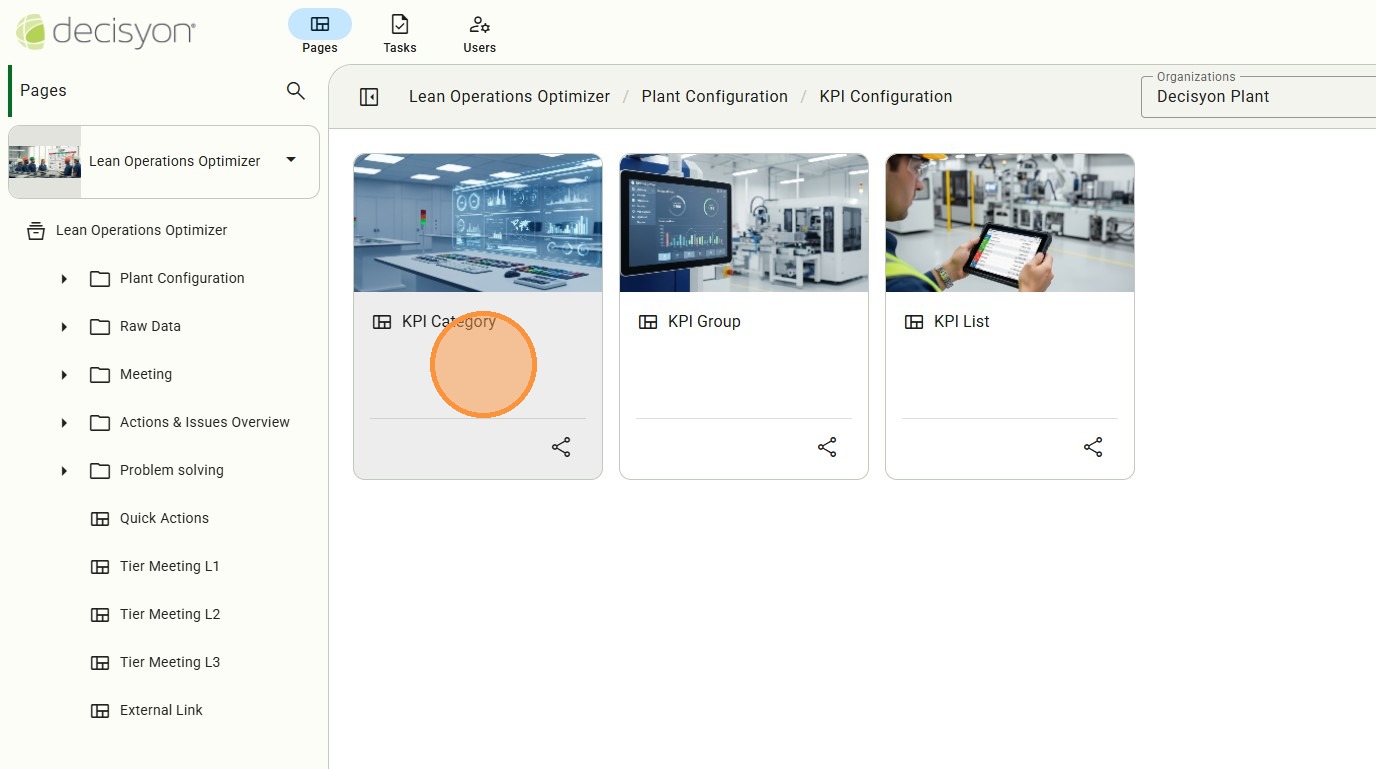
Adding Custom Categories
Users can extend the system by adding bespoke KPI Categories. This allows the platform to adapt to specific business needs or unique industry requirements that fall outside the default system settings.
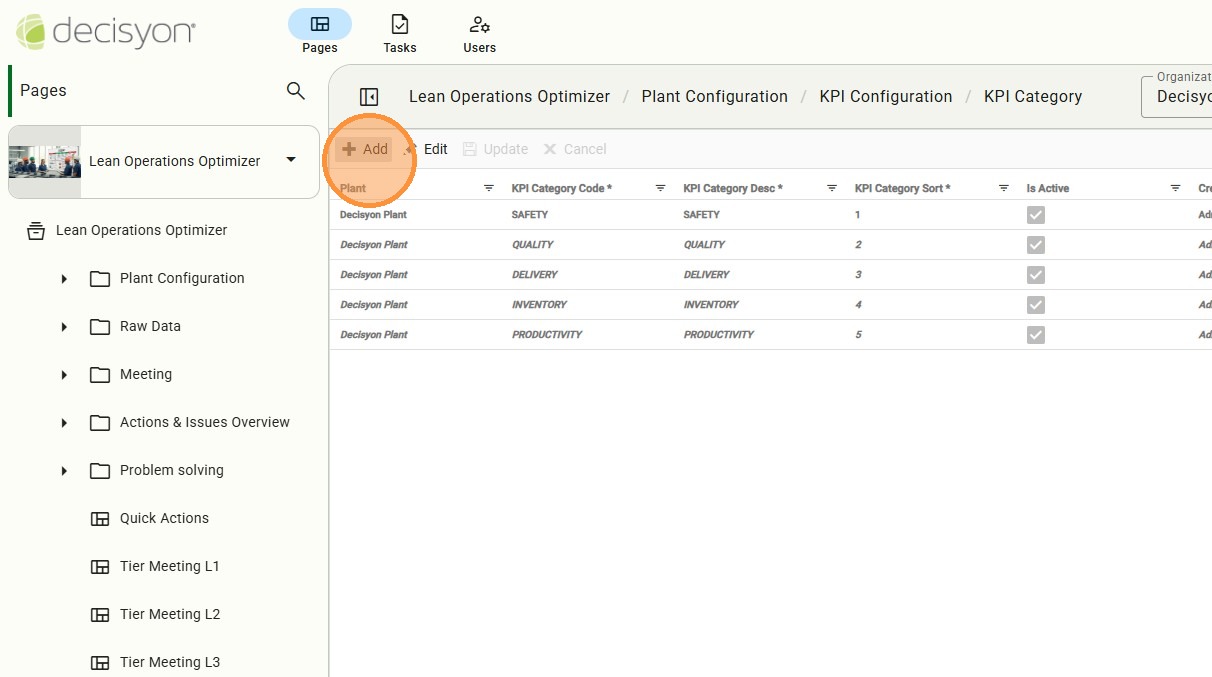
Categories shown in italics are system-protected and cannot be edited, ensuring standardized reporting for core metrics.
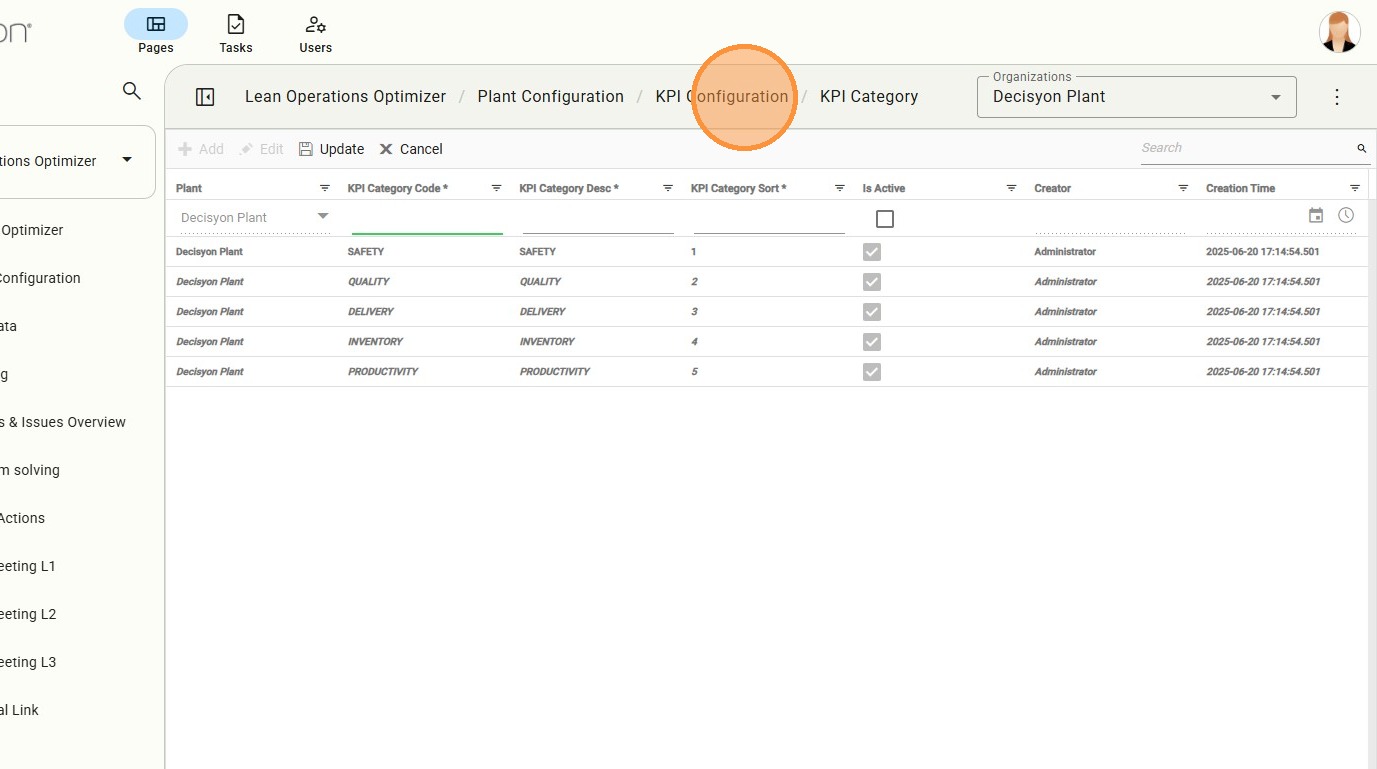
In the Navigation control, select KPI Configuration to return the main list.
KPI Group Configuration
Within each Category, KPIs can be organized into Groups. This secondary layer of classification is essential for structured dashboarding, allowing users to bundle related indicators (e.g., "Waste Metrics" within a "Sustainability" category).
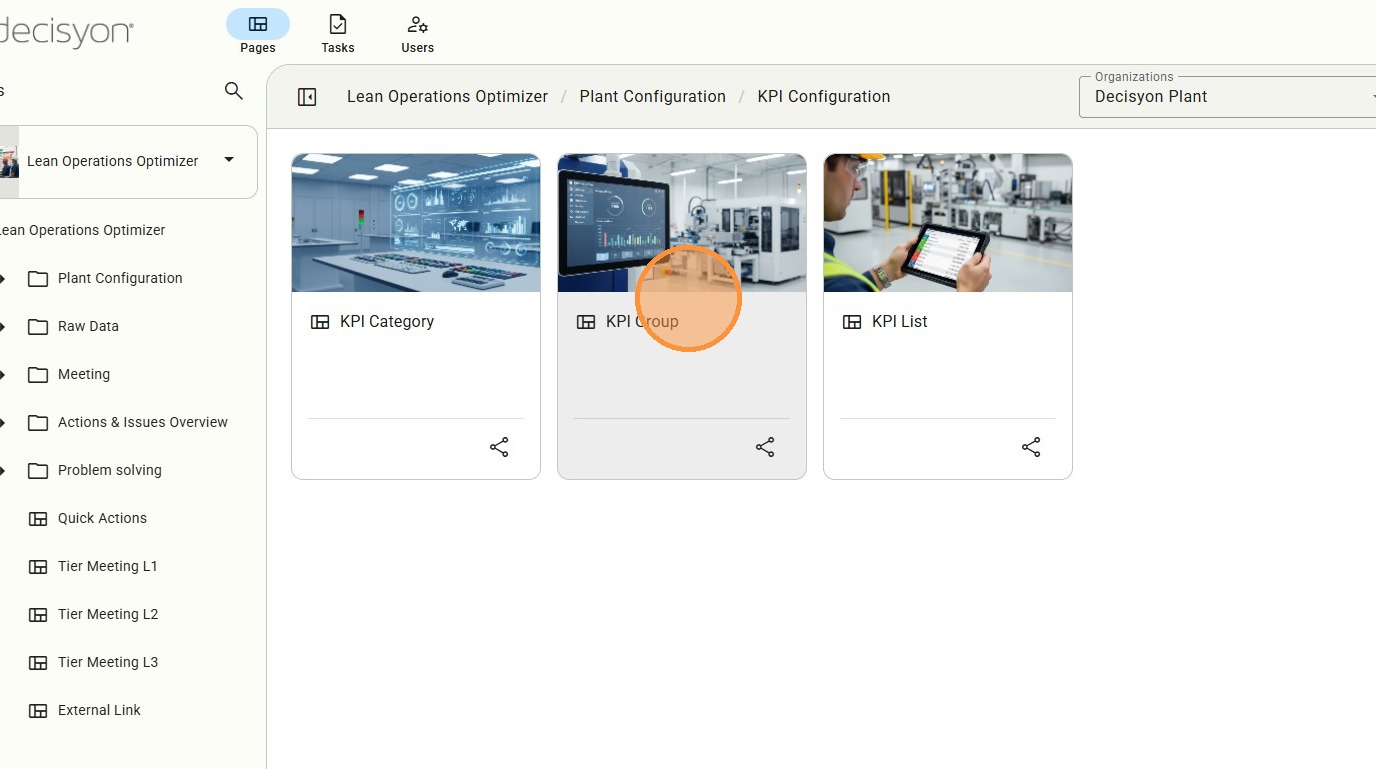
Group Assignment & Creation
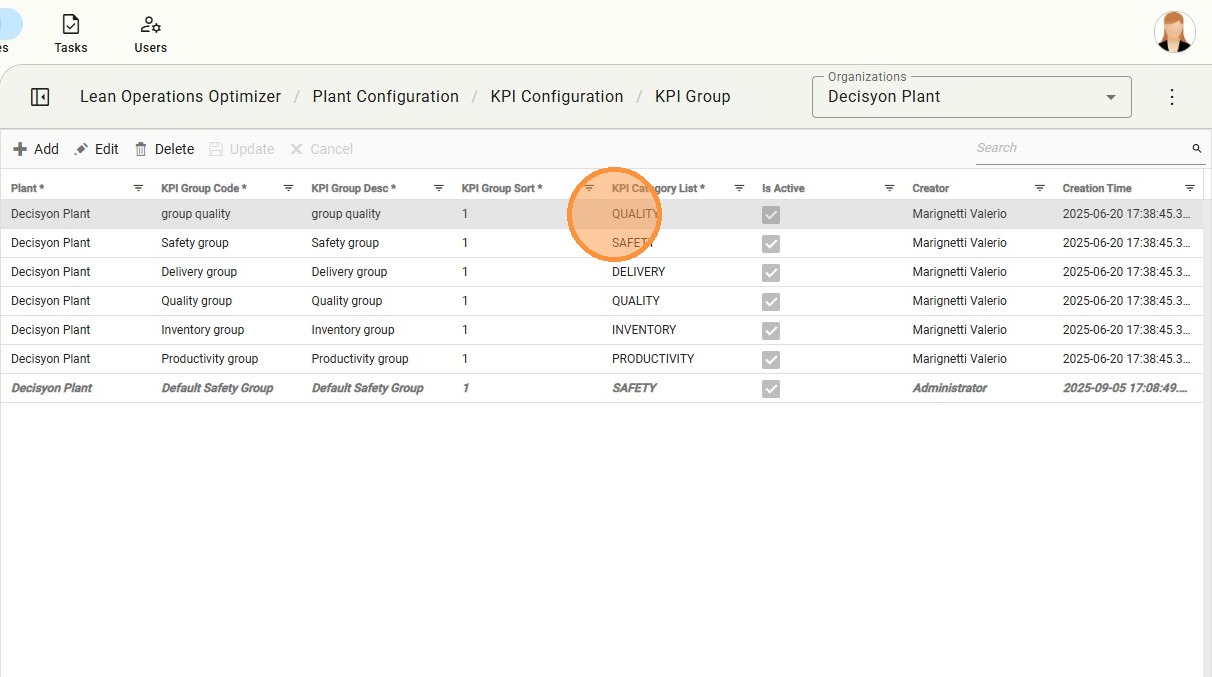
In the KPI Group administrator can access the Group Management interface that allows for the creation of new groups and their direct linkage to existing categories. This flexible mapping supports complex organizational structures.
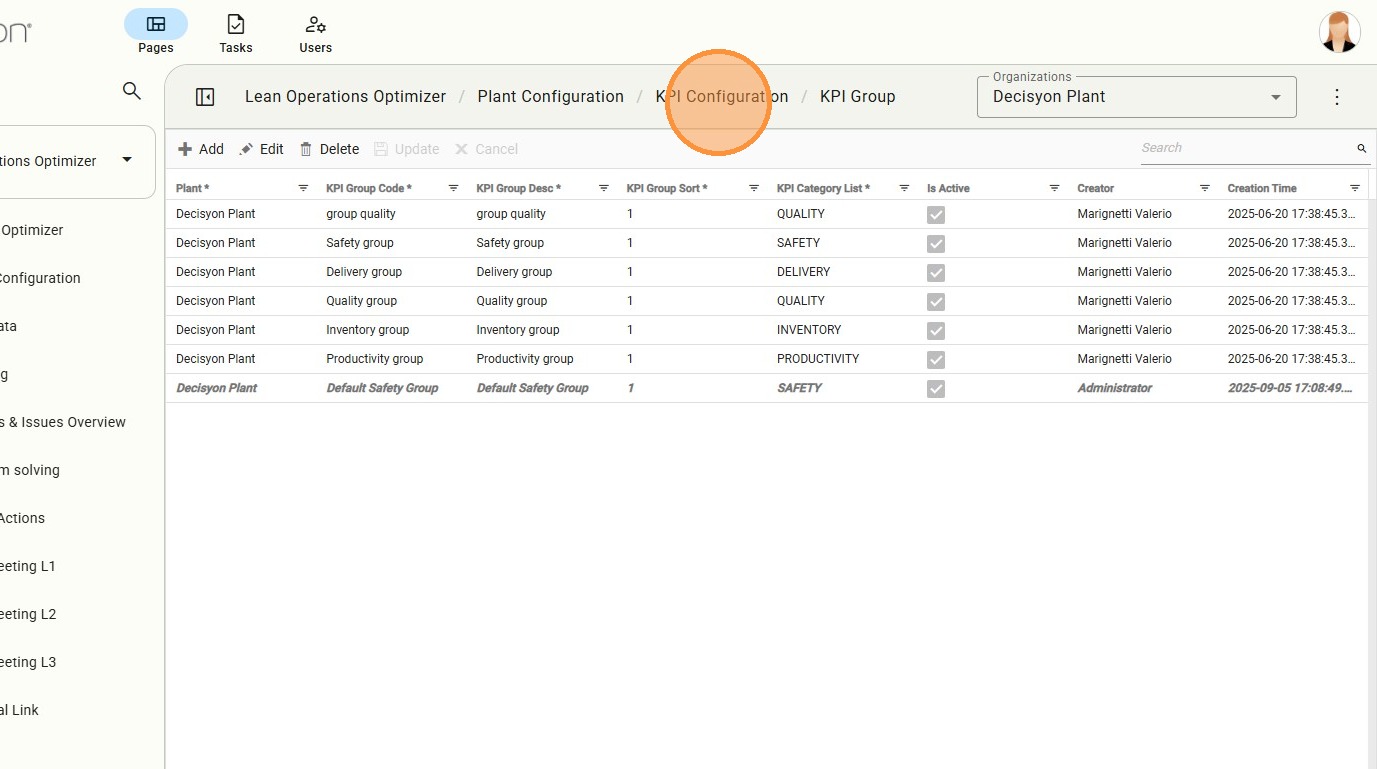
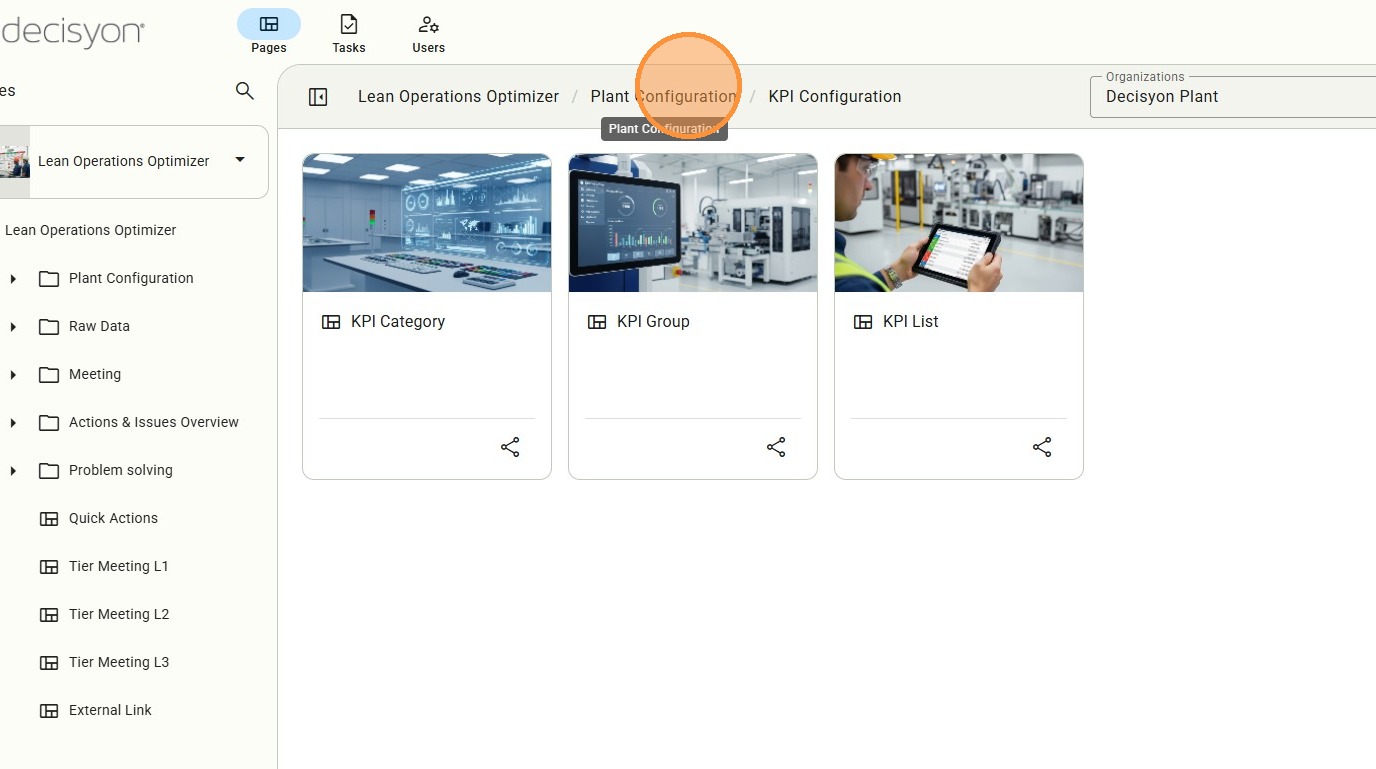
Return to the root KPI Configuration menu to proceed to the final stage of individual indicator definition.
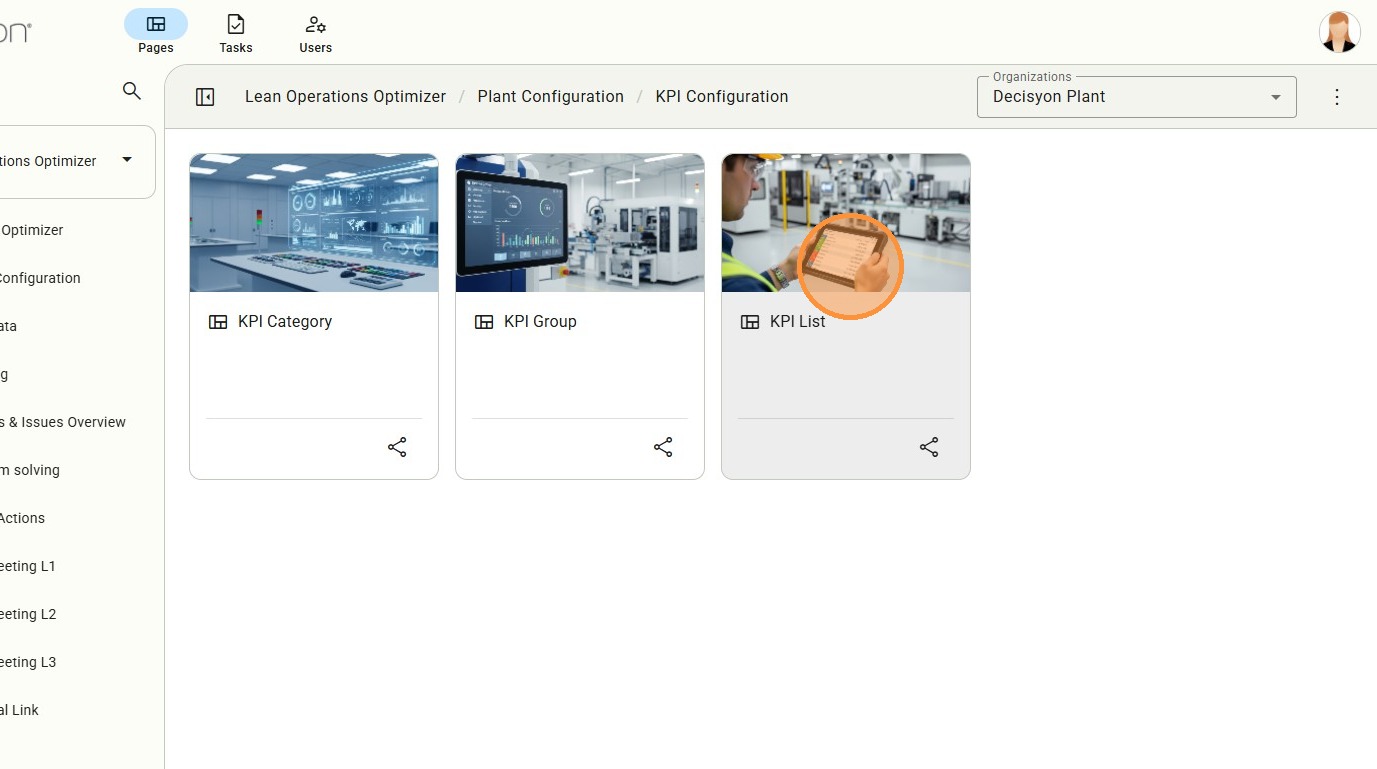
KPI List
The KPI List view provides a comprehensive table of all active indicators. From here, users can manage the specific metadata for every metric tracked in the plant.
Defining Individual KPI Attributes
In this panel, users define the "DNA" of a KPI: its name, its parent category/group, and its display priority (Sort). Descriptive fields ensure that all users understand the KPI's calculation logic or purpose.
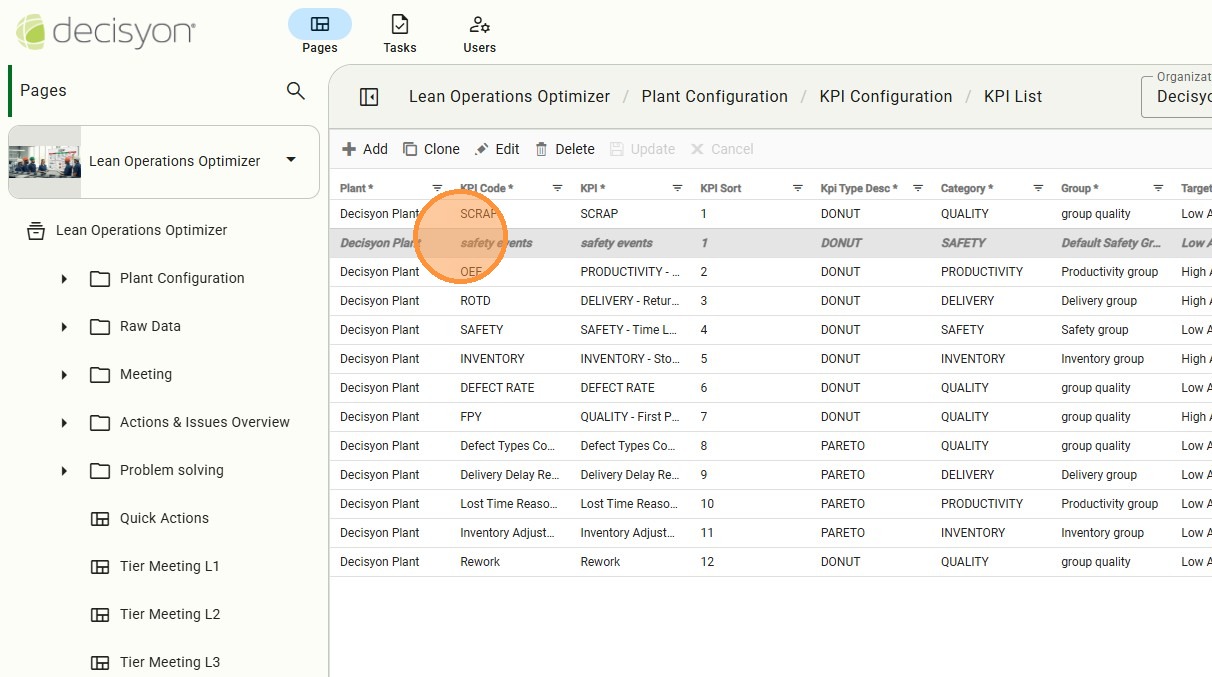
After defining the KPI metadata, navigate back to the Plant Configuration level to initiate the deployment of these indicators to the shop floor levels.
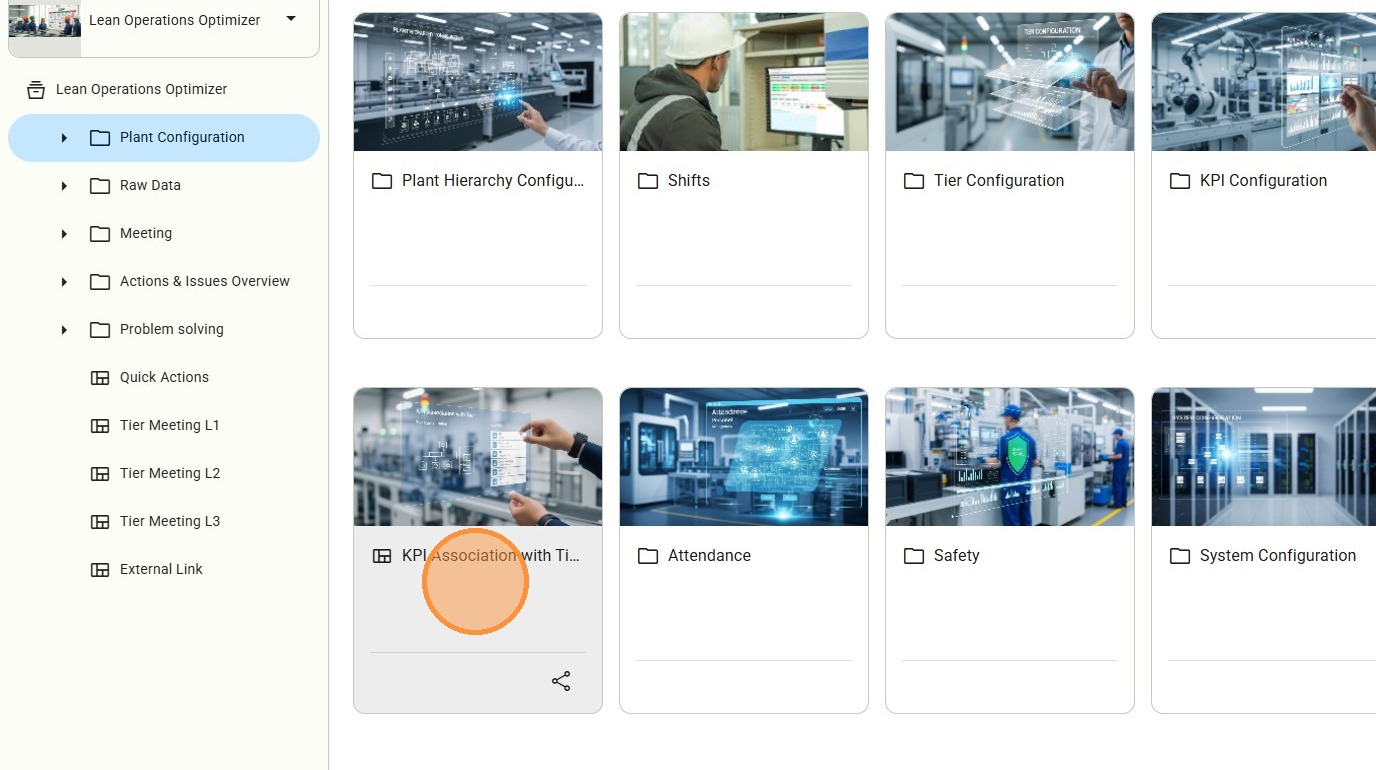
KPI Association
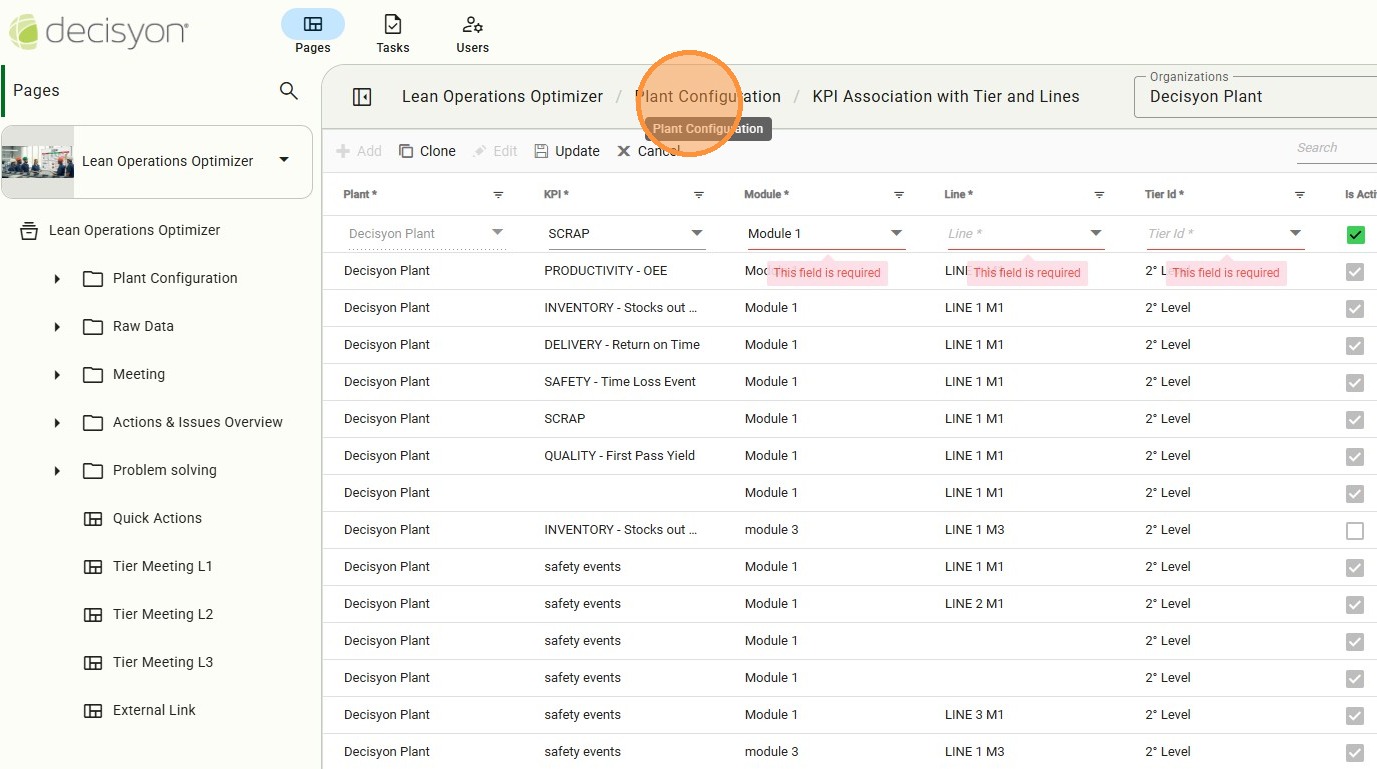
Access to KPI Association with Tier and Lines. This is a specialized module is where KPIs are "activated" for specific tiers. Without this association, a KPI exists in the database but will not appear in meeting agendas or line dashboards.
Creating a New Association
Initiate the workflow to link a specific metric to its physical or logical monitoring point within the plant's operational structure.
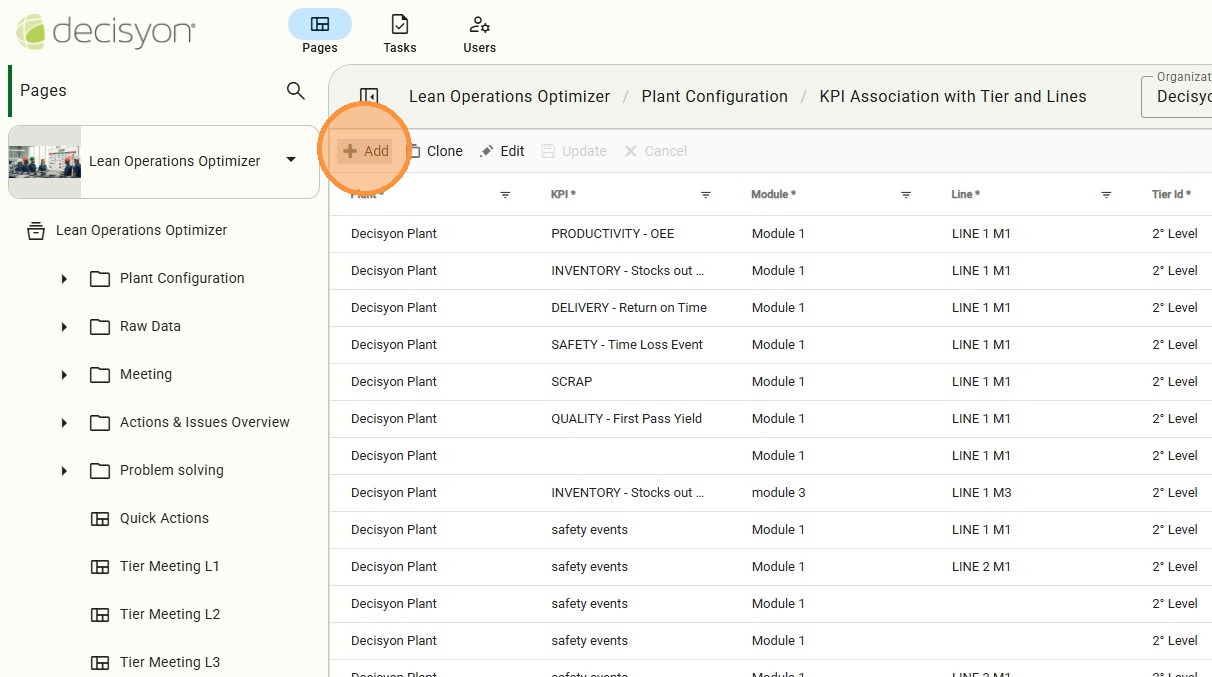
Context Definition (Tier & Level)
The KPI Association Tier page is critical for visibility. It defines exactly where a KPI will be monitored—associating it with a Module, Line, and Tier level to ensure it reaches the relevant personnel during daily stand-ups.
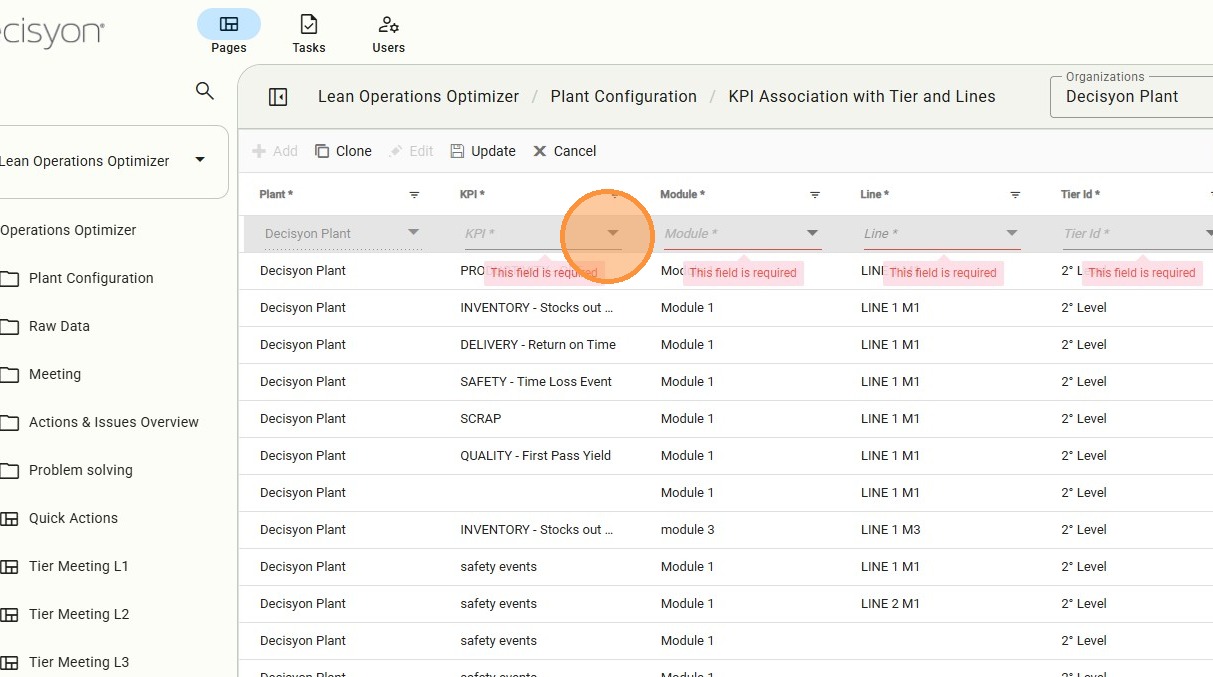
Target KPI Selection
Select the specific KPI (e.g., "SCRAP") that needs to be assigned to a production context.
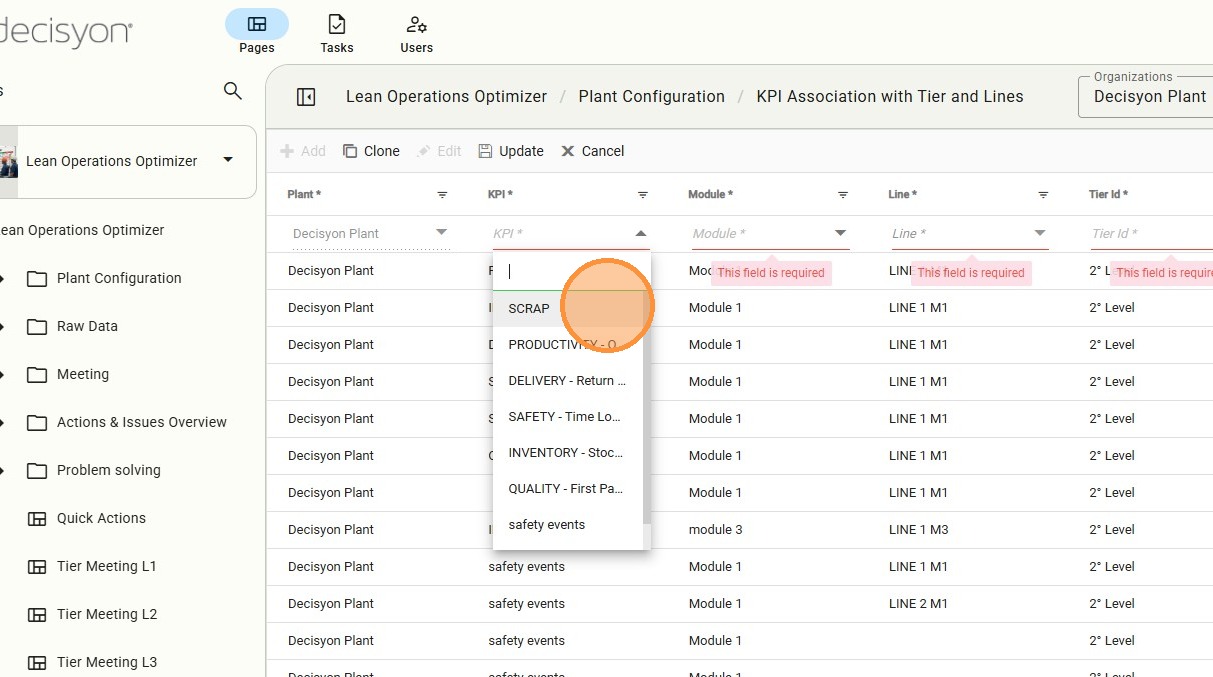
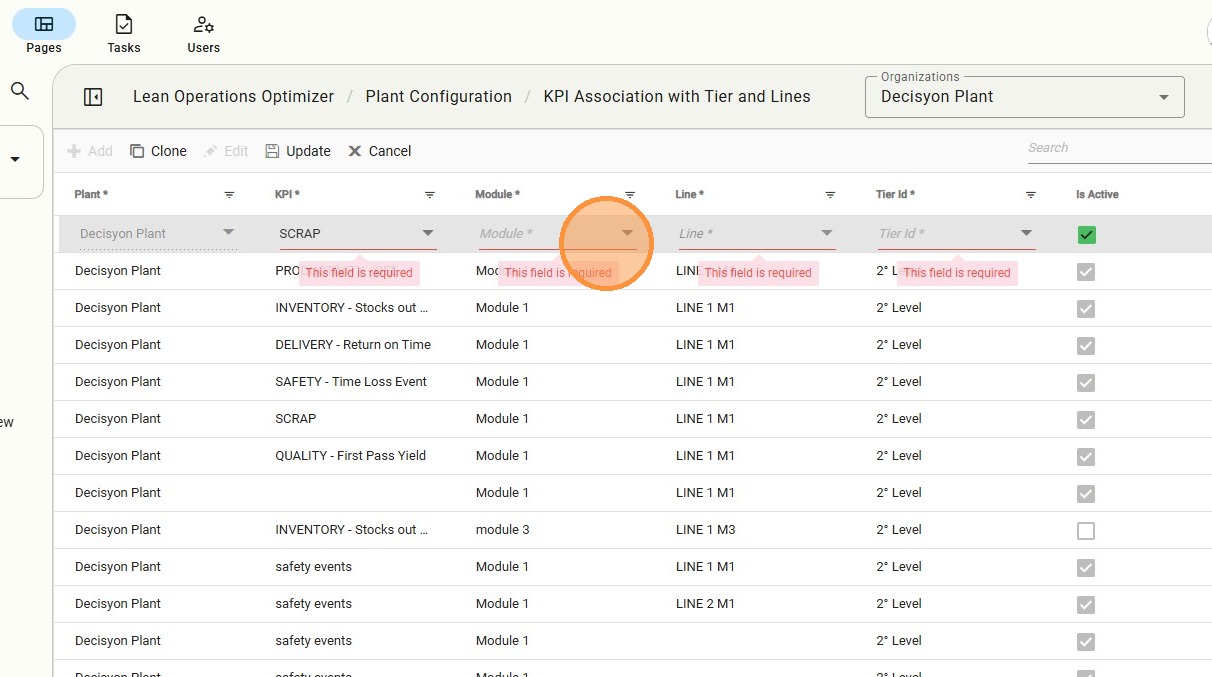
Operational Hierarchy Selection
Use the dropdown lists to navigate the plant hierarchy, ensuring the KPI is mapped to the correct organizational node.
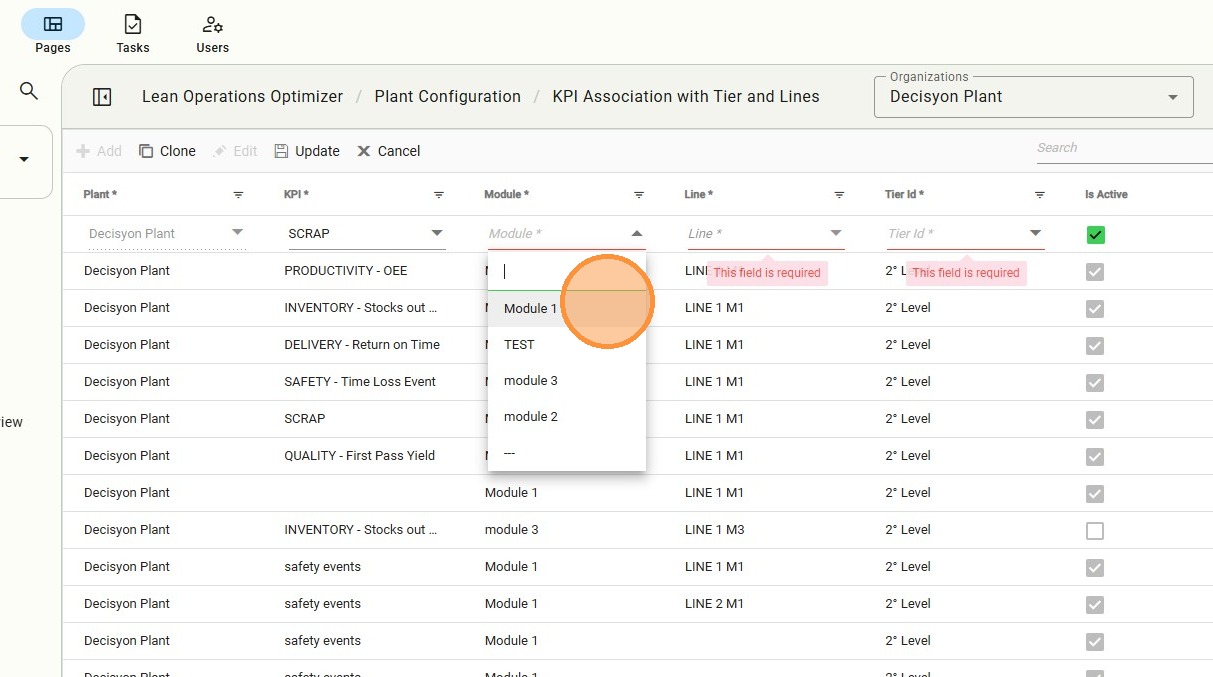
Module-Level Mapping
In this example, the KPI is being associated with "Module 1," ensuring that this metric will only populate dashboards and reports relevant to this specific production module.
Finalizing and Exiting Configuration
Once the association is saved, the user can exit the configuration mode. The KPI is now live and will be tracked according to the defined contextual rules.
Last updated