
Workforce & Security
Attendance & Plant Safety Configuration
Overview
The Attendance & Safety Configuration module is a foundational pillar within the Decisyon LOOP ecosystem. It empowers administrators to digitize and standardize the tracking of human presence and workplace safety metrics.
By defining custom Attendance Roles, the system ensures that every participant in a Tiered Meeting (from Tier 1 shop floor huddles to executive reviews) is correctly identified. This data-driven approach allows for precise monitoring of attendance, delays, and absences, directly feeding into operational performance KPIs. Furthermore, the Safety Configuration engine provides the necessary framework to categorize and log safety incidents or "Near Misses," facilitating a proactive culture of workplace security and compliance through the "Safety Raw Data" management interface.
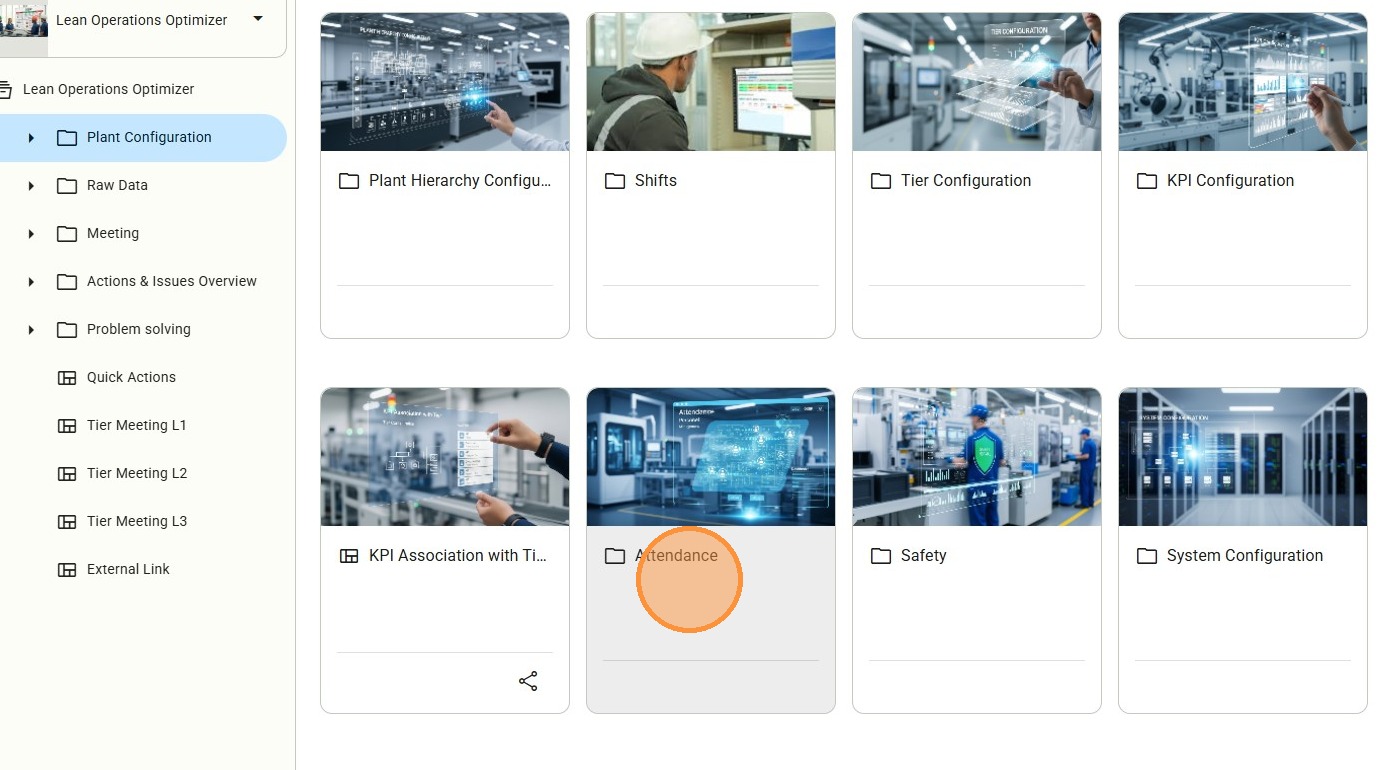
How to...
Attendance Role List
Select Attendance Role List, this is the access point for the master list of organizational roles. This section serves as the registry for all personnel types recognized during meeting sessions.
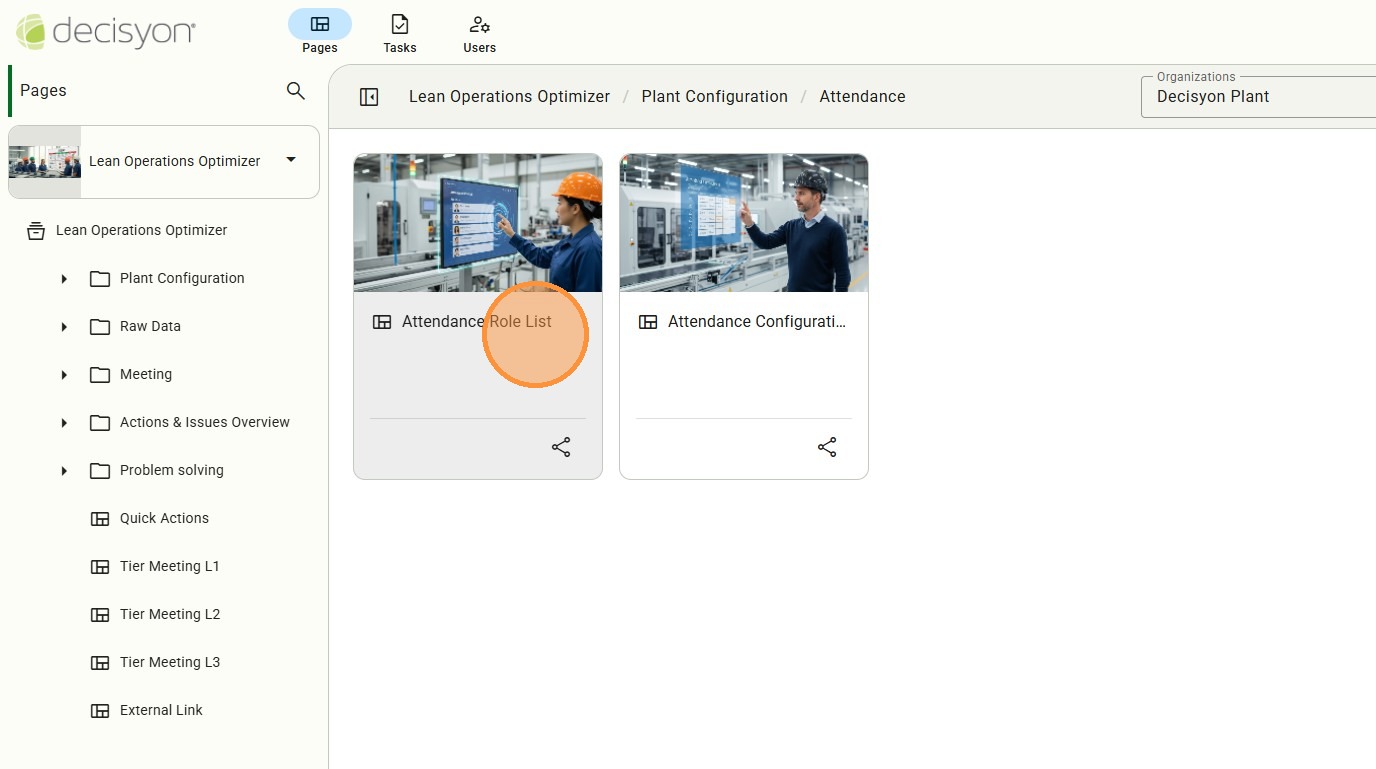
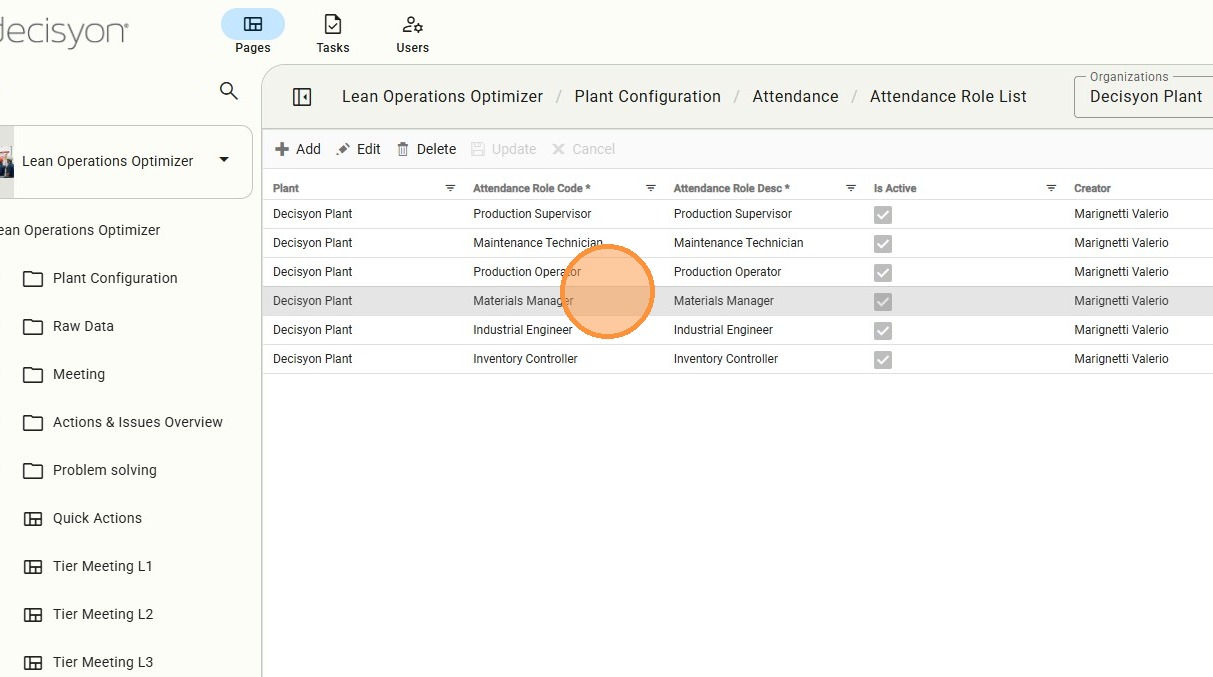
Role Definition Manager
Here there is a comprehensive management interface where users can insert new roles, modify existing permissions, or delete obsolete entries to keep the personnel registry up to date.
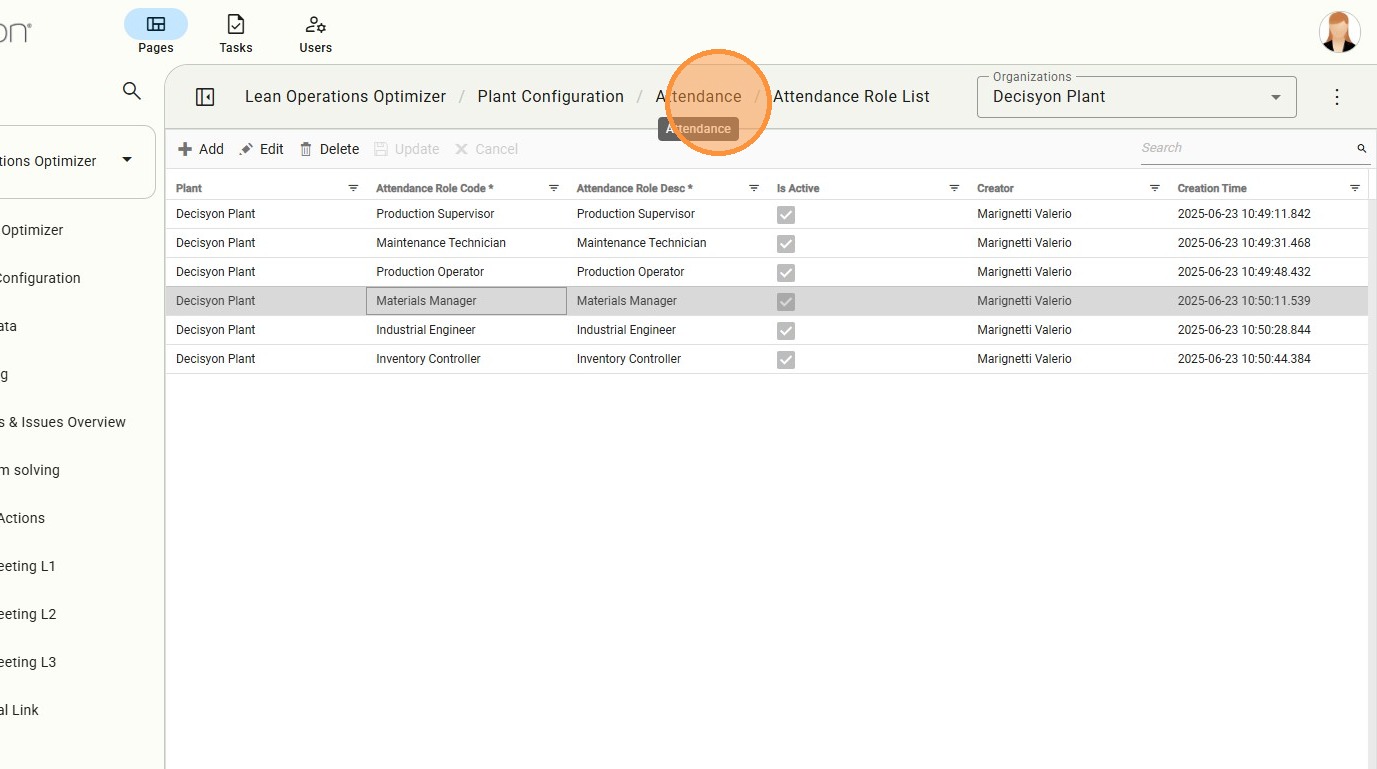
In the Navigation control, select Attendance to return the primary folder structure used to organize attendance-related sub-modules and configuration settings.
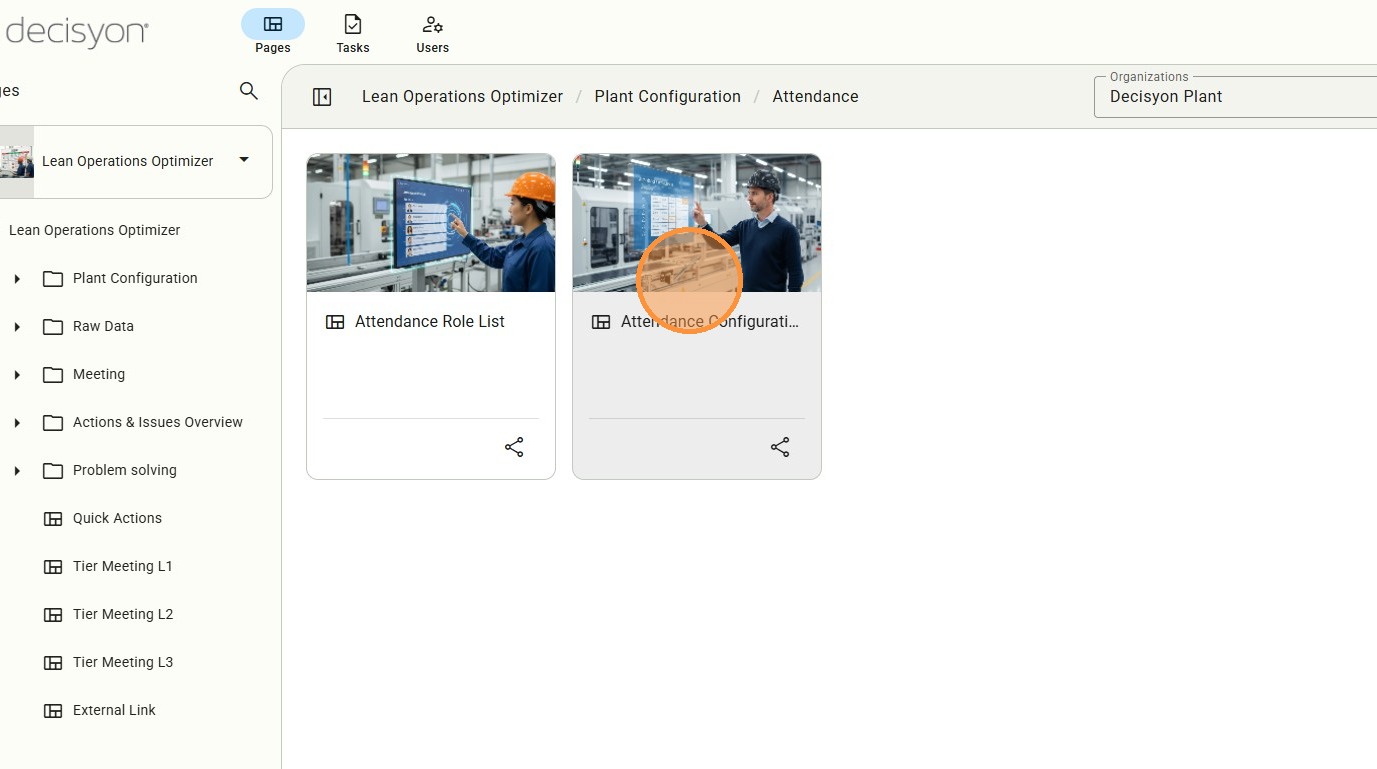
Attendance Mapping Configuration
Access to the Attendance Mapping Configuration. The gateway to the association engine, where defined roles are mapped to specific meeting levels (Tiers).
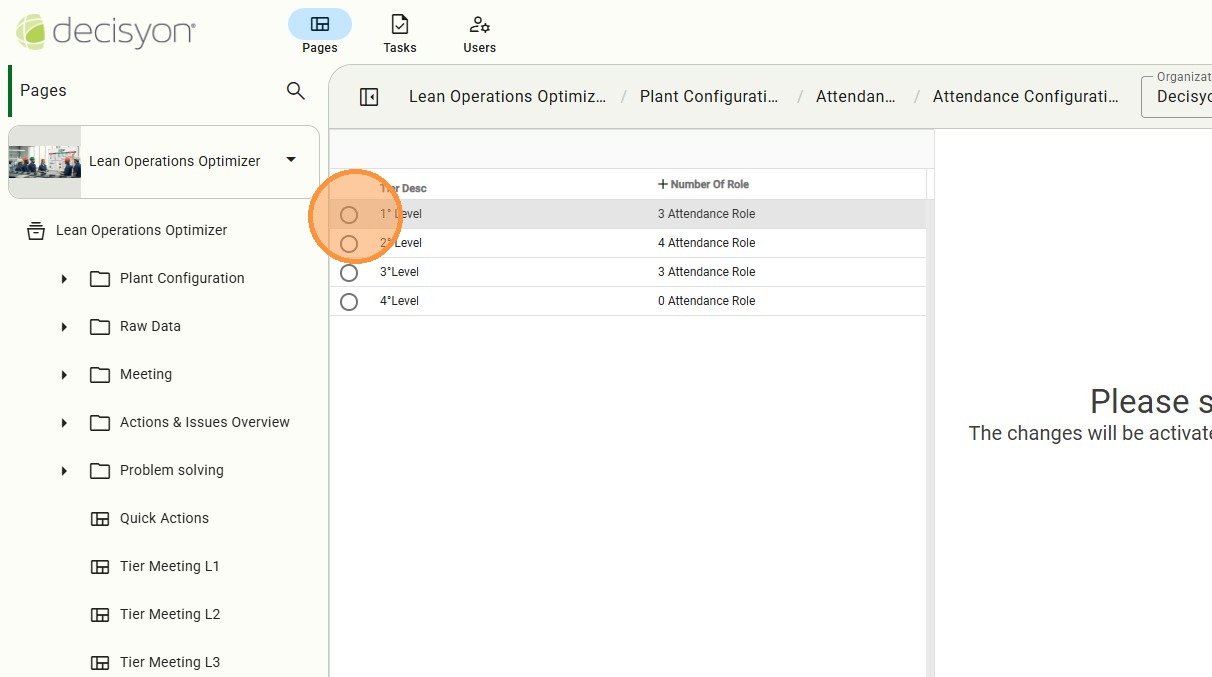
Tier-Based Role Assignment
In this page there is the configuration screen used to link specific roles to a chosen Tier level (e.g., Tier 1), enabling the system to log delays or absences for that specific meeting context.
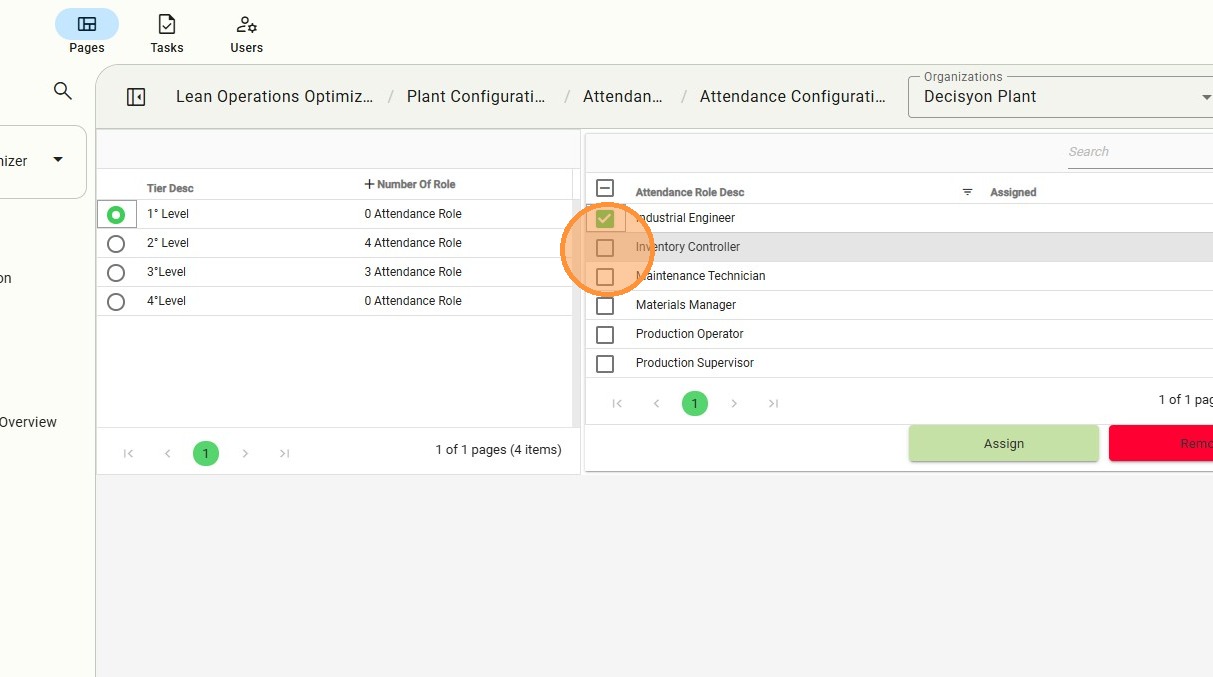
Selection Panel
An interactive sidebar displays available roles that can be selected for assignment to the current Tier level.
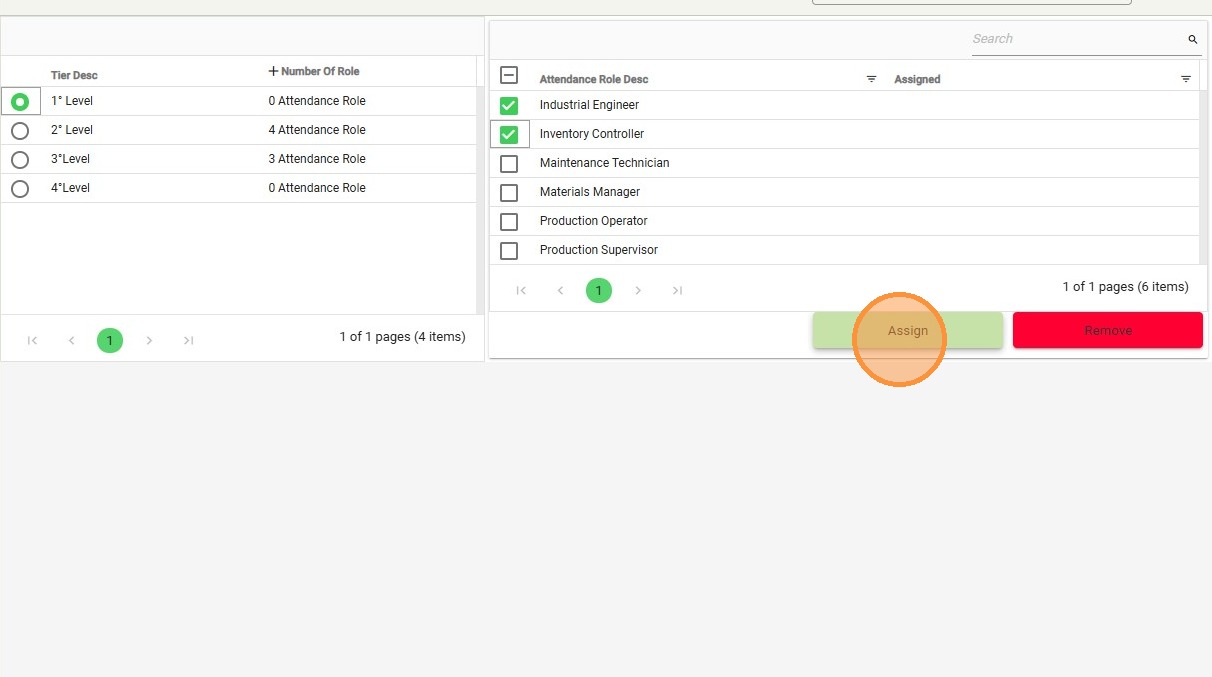
Confirm Assignment
Slect the "Assign" action button that commits the selected roles to the specific attendance configuration.
Assignment Verification
The updated list view showing checkmarks in the "Assigned" column, confirming that the roles are now active for the selected meeting level.
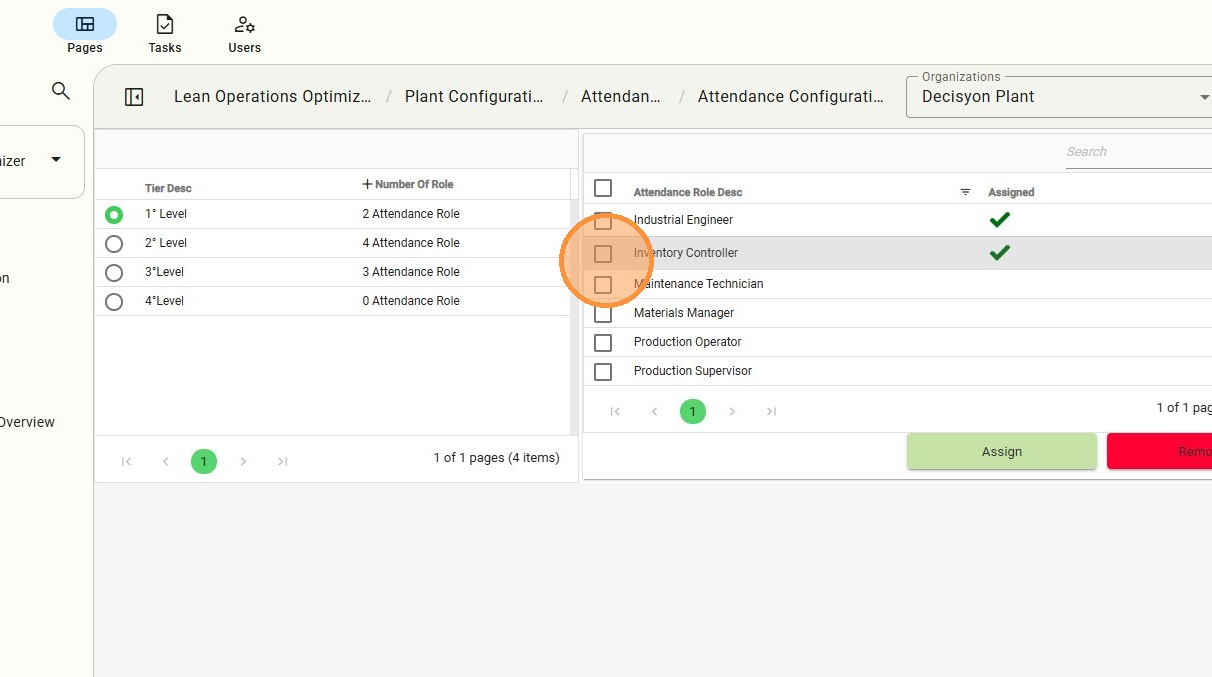
Remove Role Association
The "Remove" button allows users to detach roles from a configuration if they are no longer required for a specific Tier.
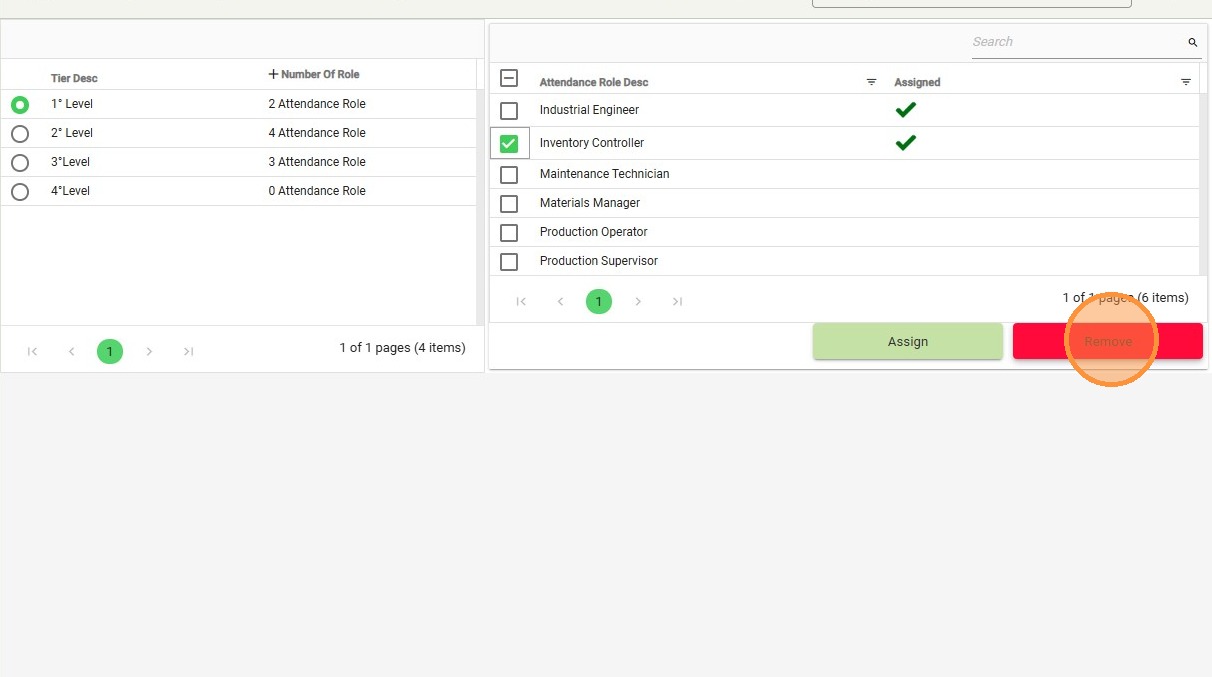
In the Navigation control, select Plant Configuration to return the high-level plant setup area where safety and organizational structures are defined.
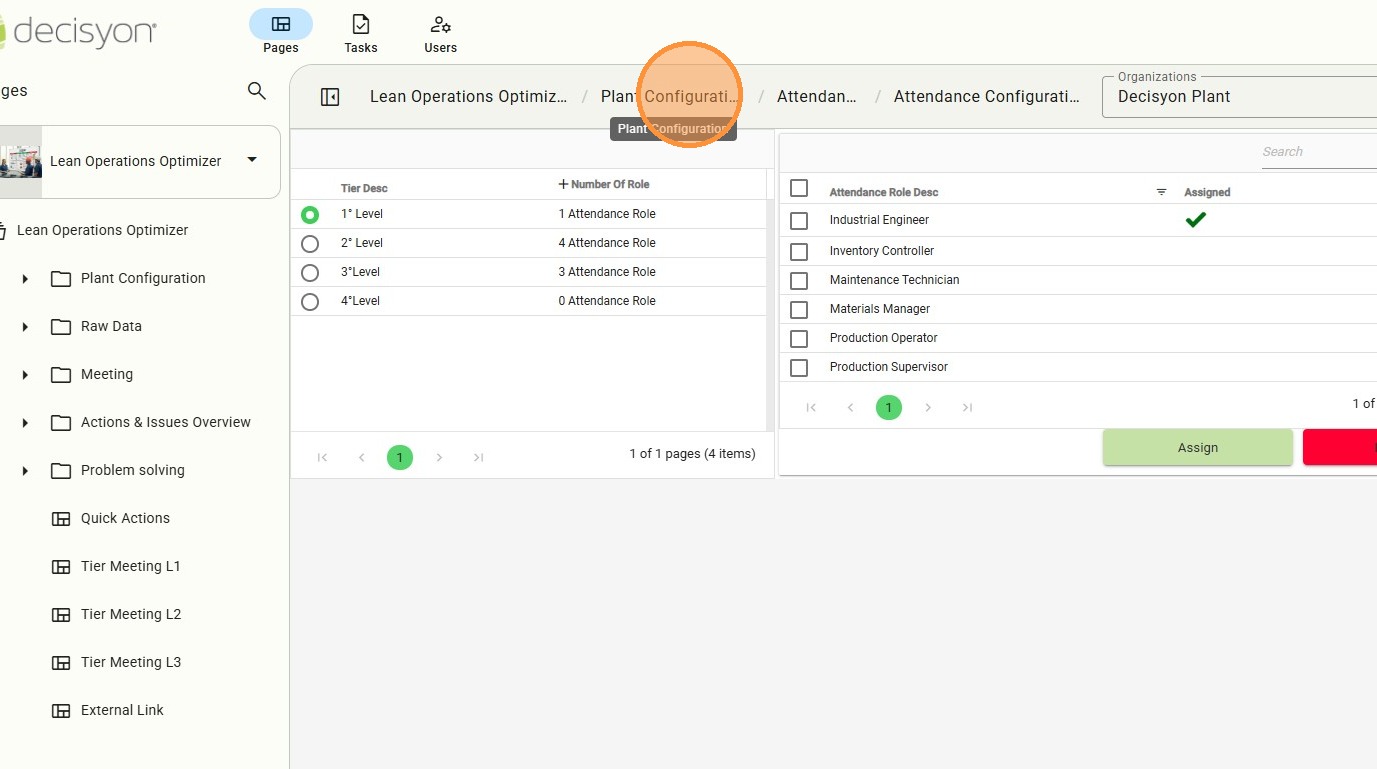
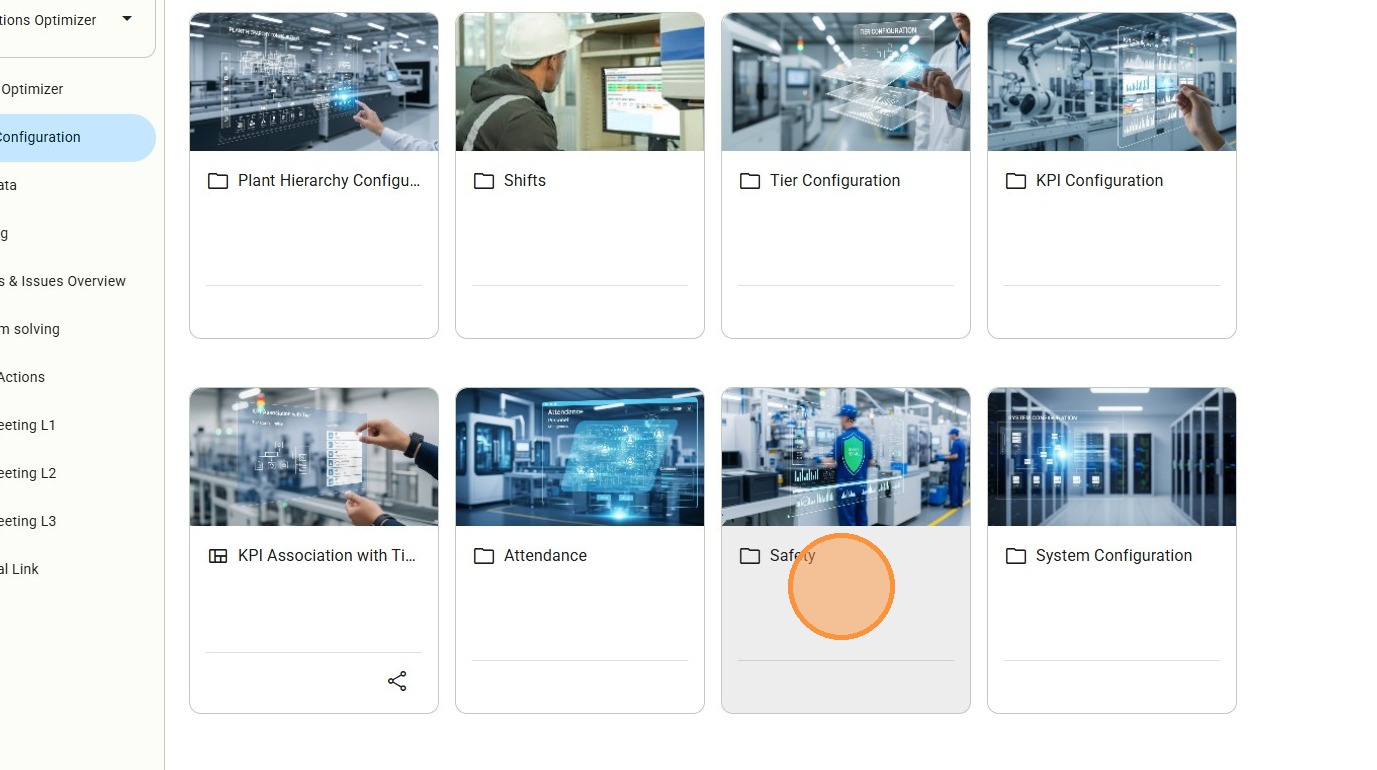
Safety Configuration Hub
This section allows for the creation and management of safety categories, which are vital for accurate incident reporting in the field.
Safety Category List
Select Safety Category to access the detailed view providing access to specific safety classification types used throughout the plant.
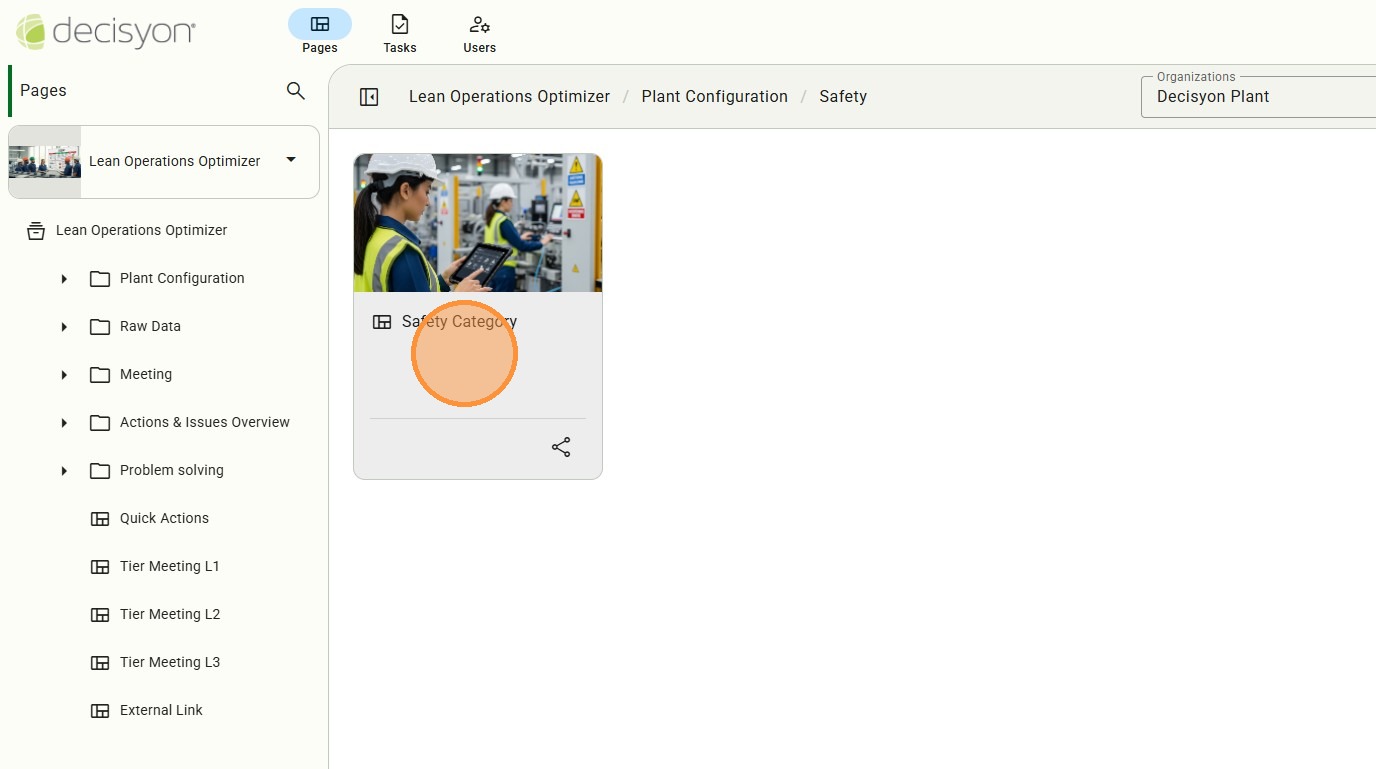
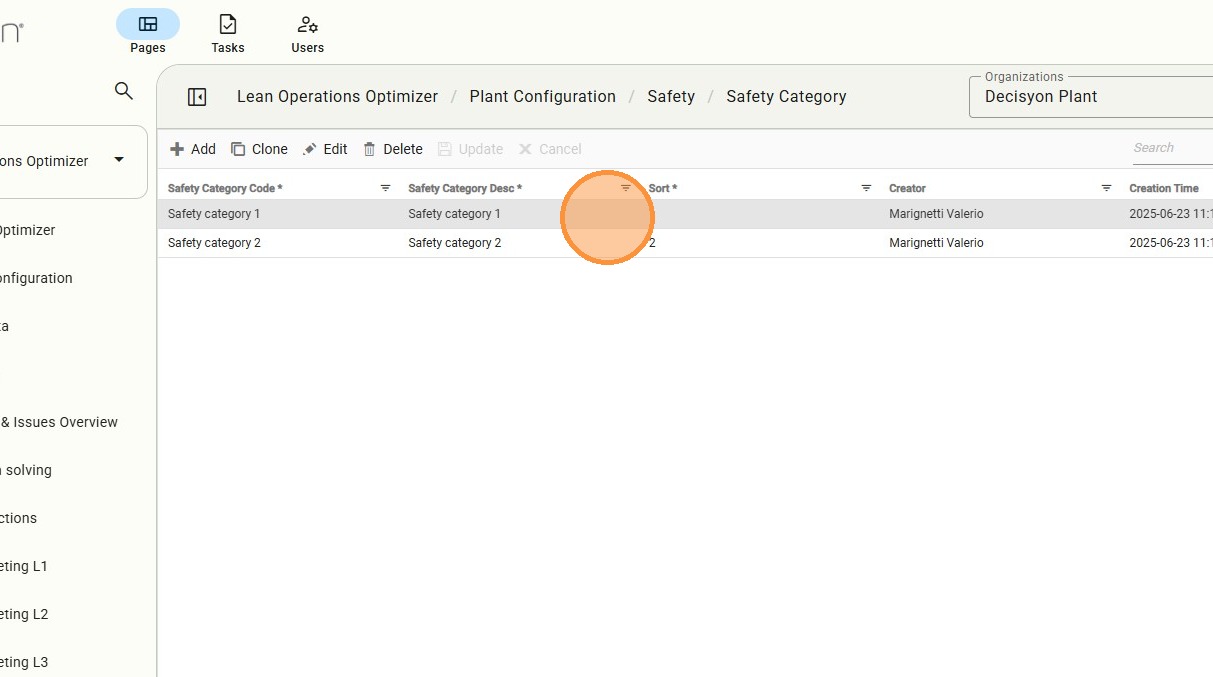
Safety Category Management
This is the administrative interface to create, edit, or remove safety categories, ensuring incident logging matches current safety protocols.
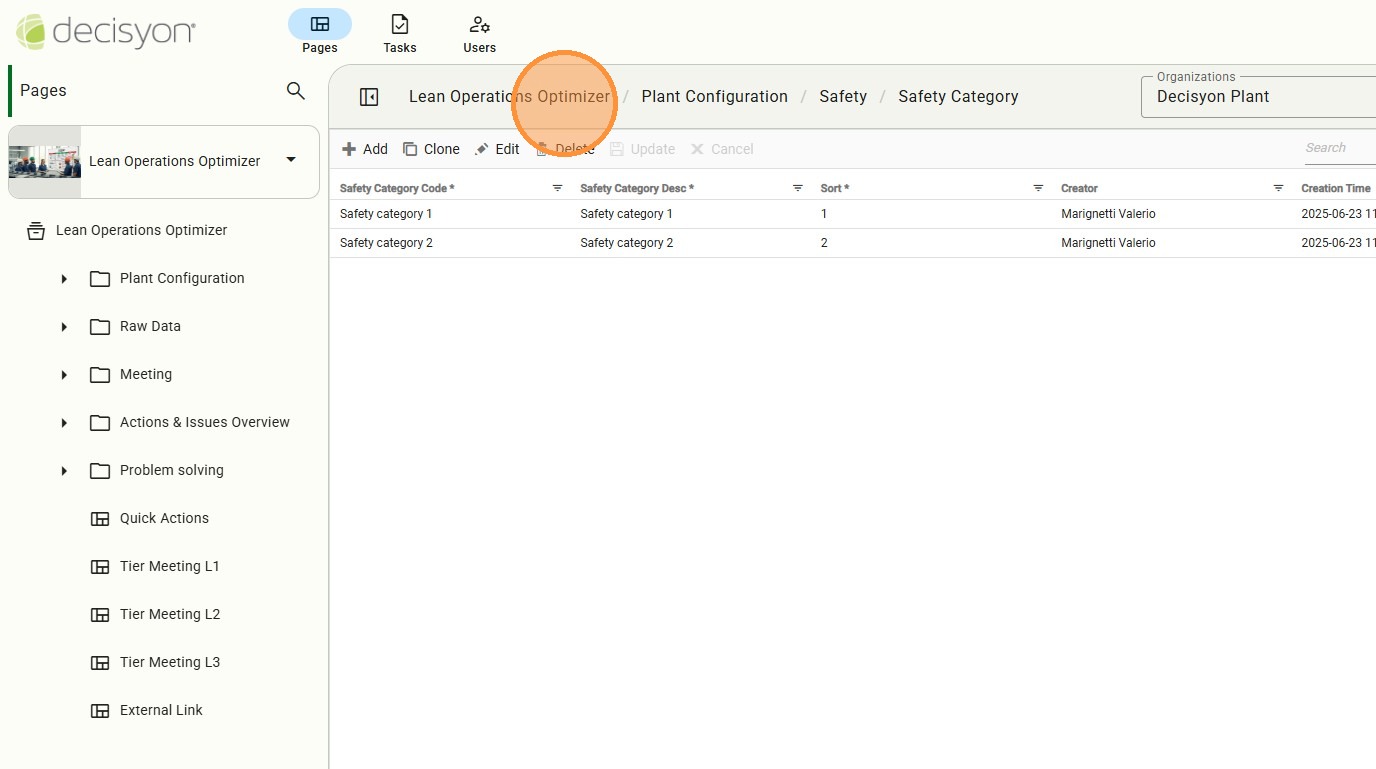
In the Navigation control select Lean Operations Optimizar to return the primary landing page used to navigate between configuration settings and live data entry modules.
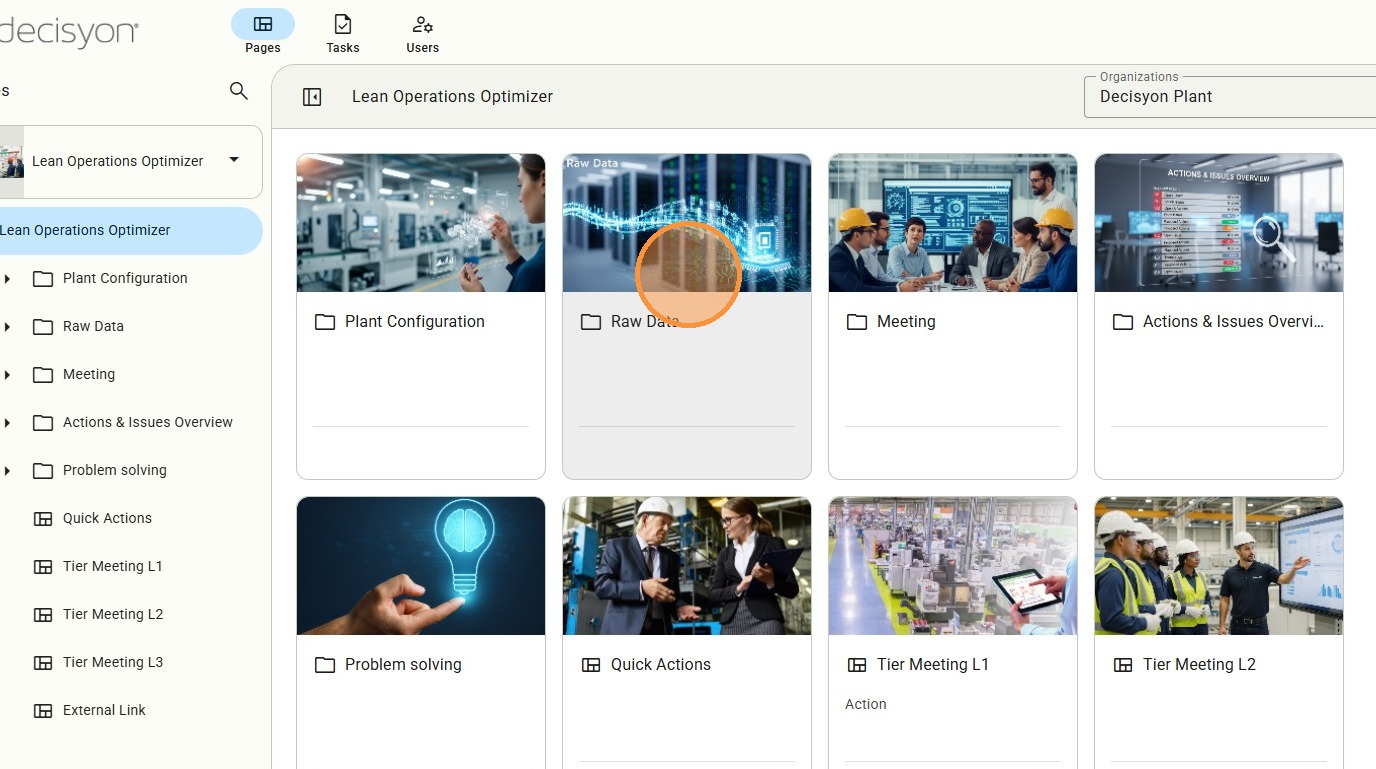
Raw Data Module Selection
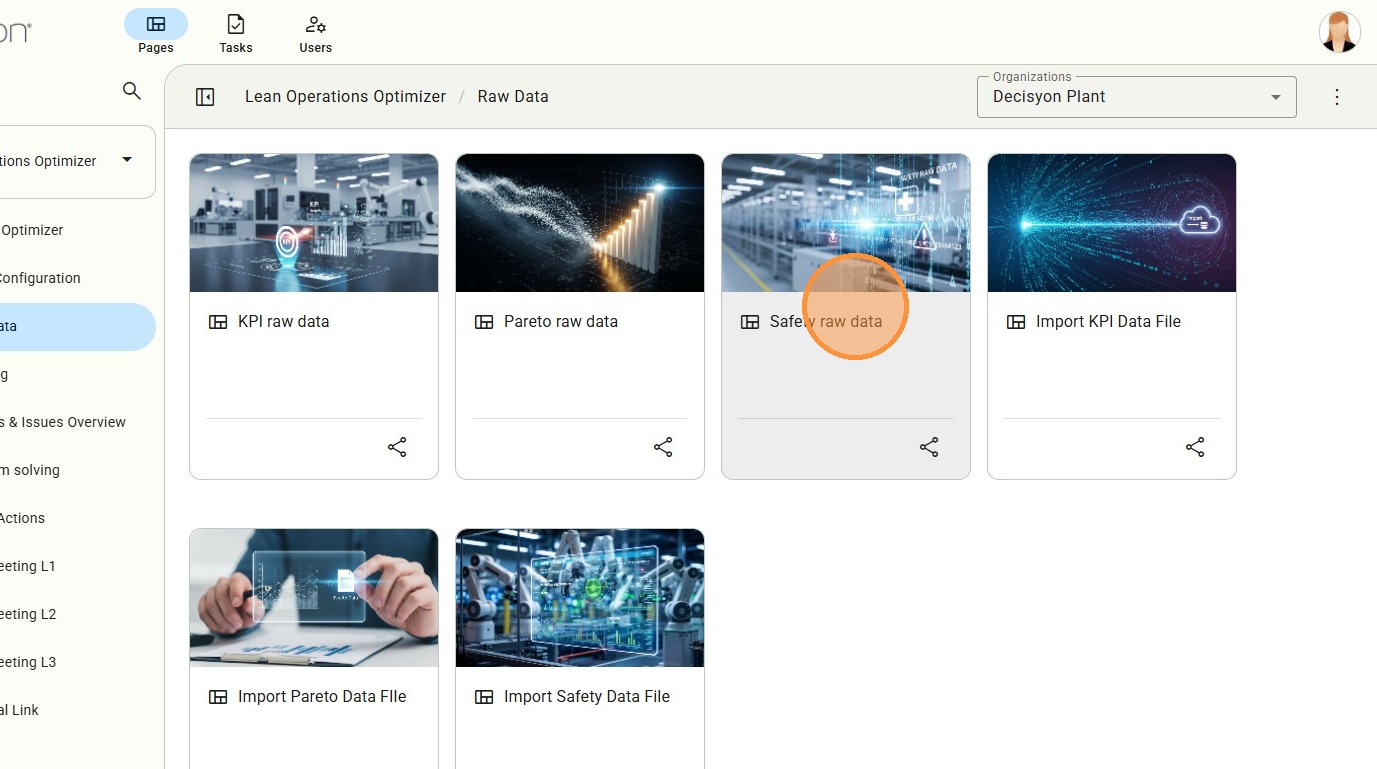
Accessing the "Raw Data" engine to begin the process of logging real-time plant events.
Safety Raw Data Management
Access to Safety raw data. Here there is the operational screen where safety events are recorded based on the categories established in the configuration phase.
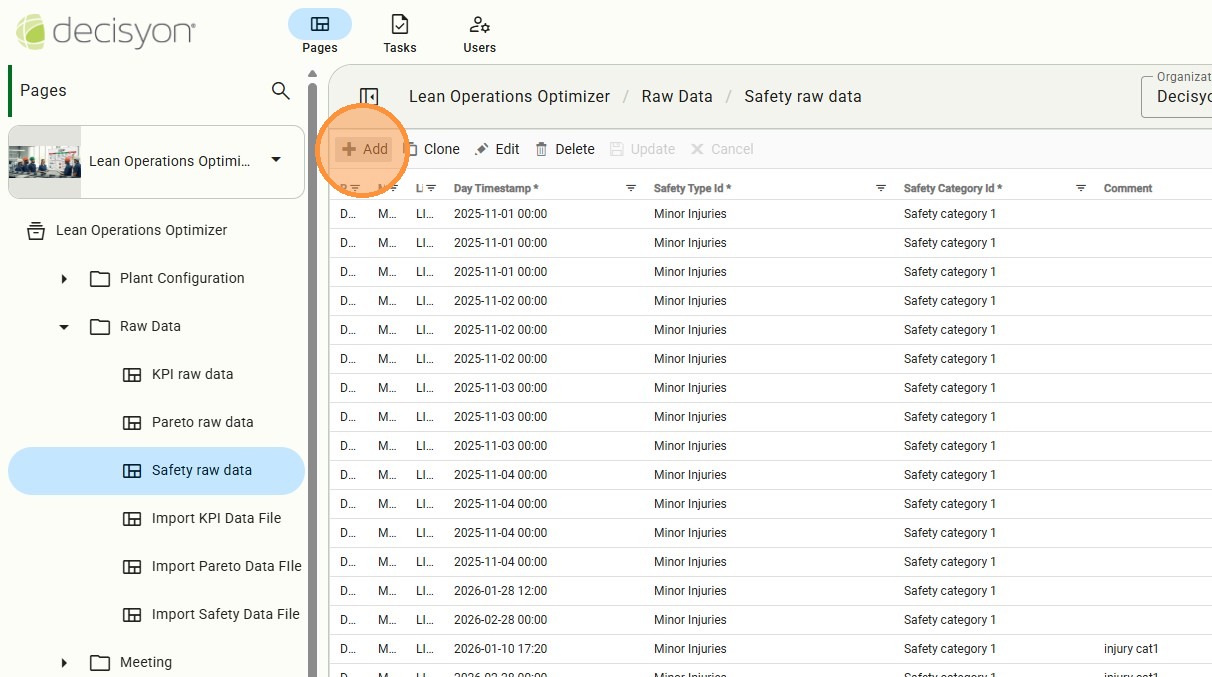
Add New Incident Record
This interface is the initiation point for entering a new safety event into the system's database.
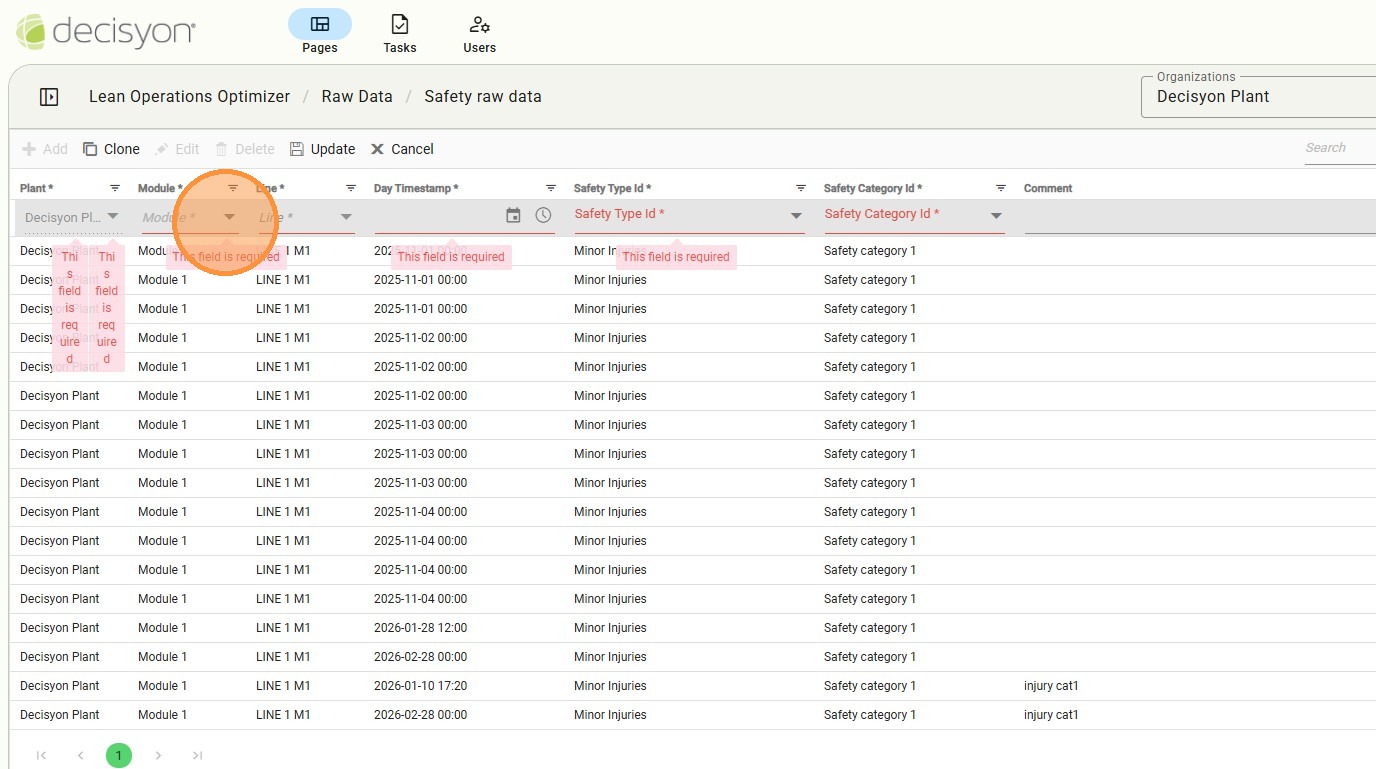
Module Selection
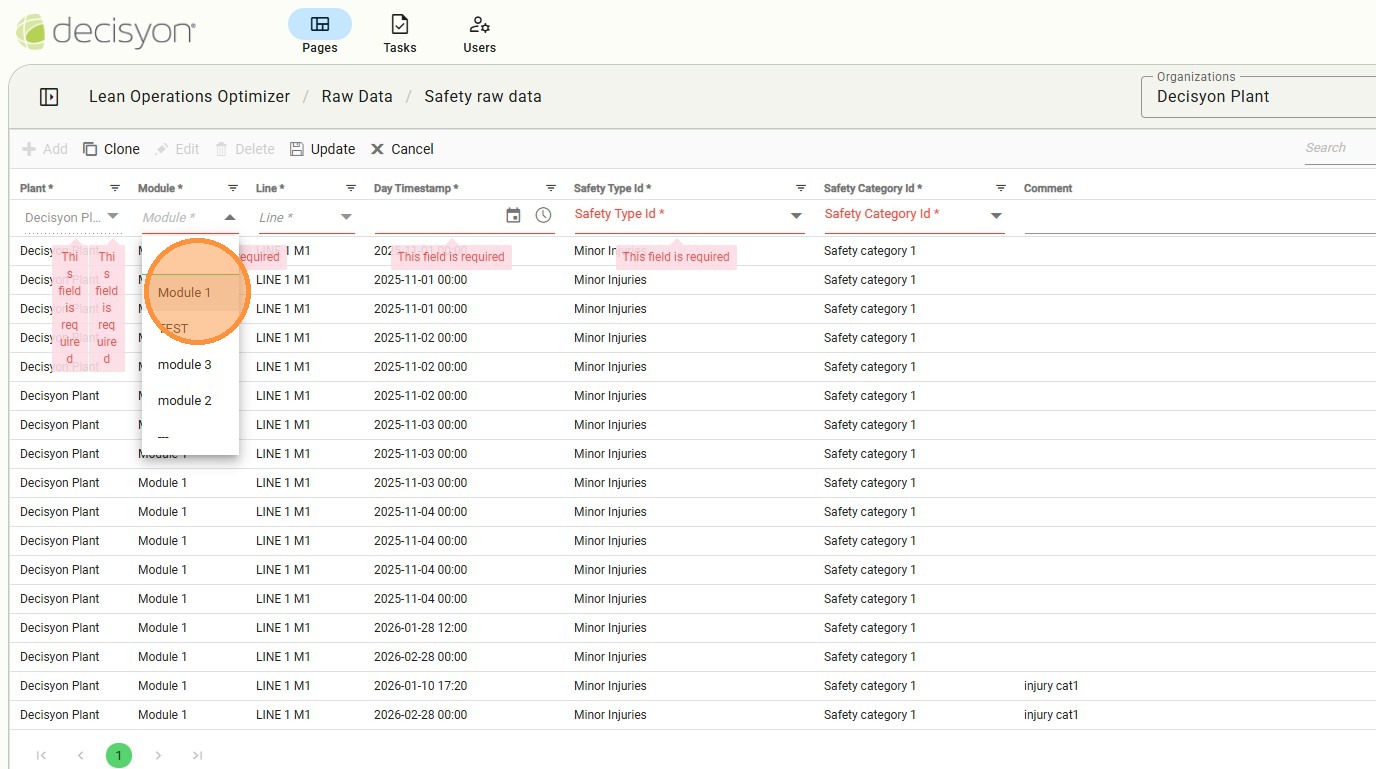
In the dropdown menu select the specific industrial module where the event took place.
Selecting a specific operational unit (e.g., Module 1) to ensure precise data localization.
Production Line Selector
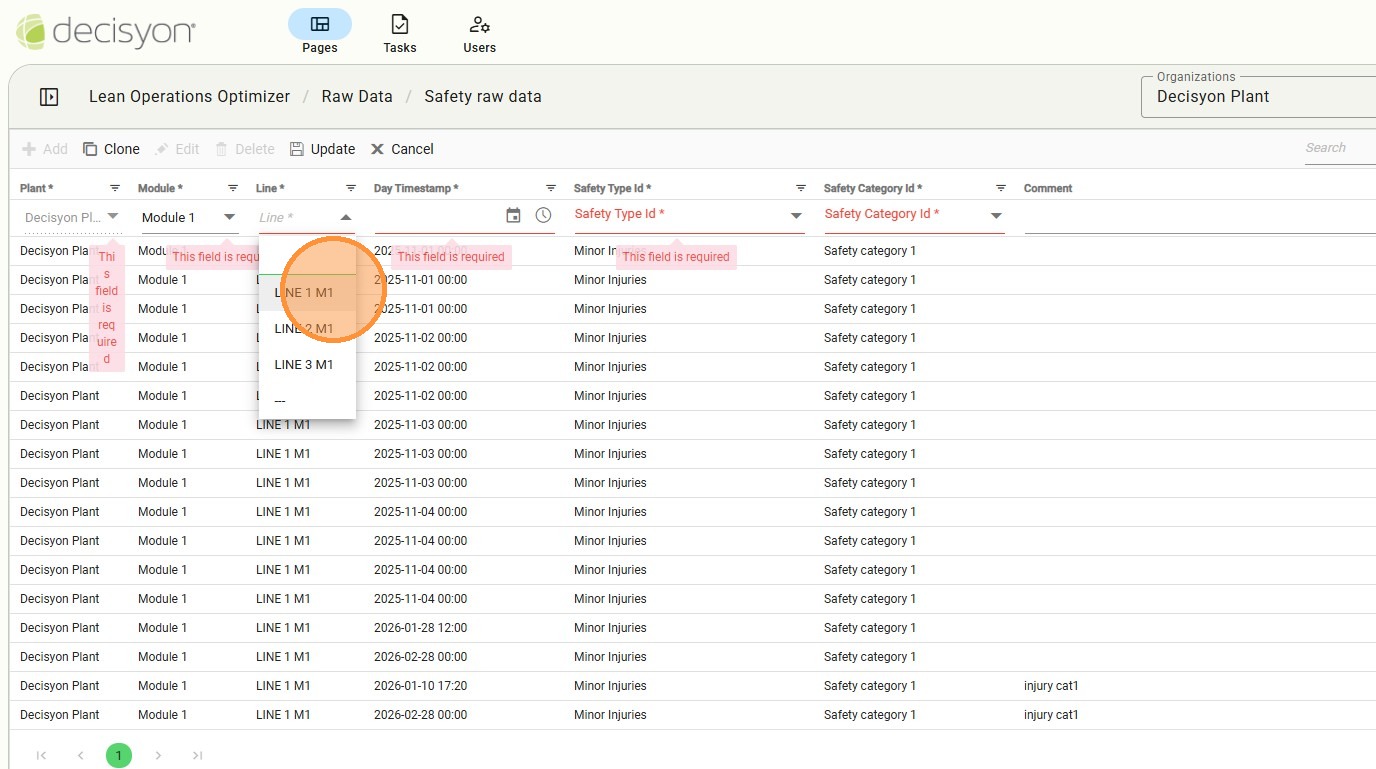
Filtering the record to a specific production line to isolate safety impacts on individual workflows.
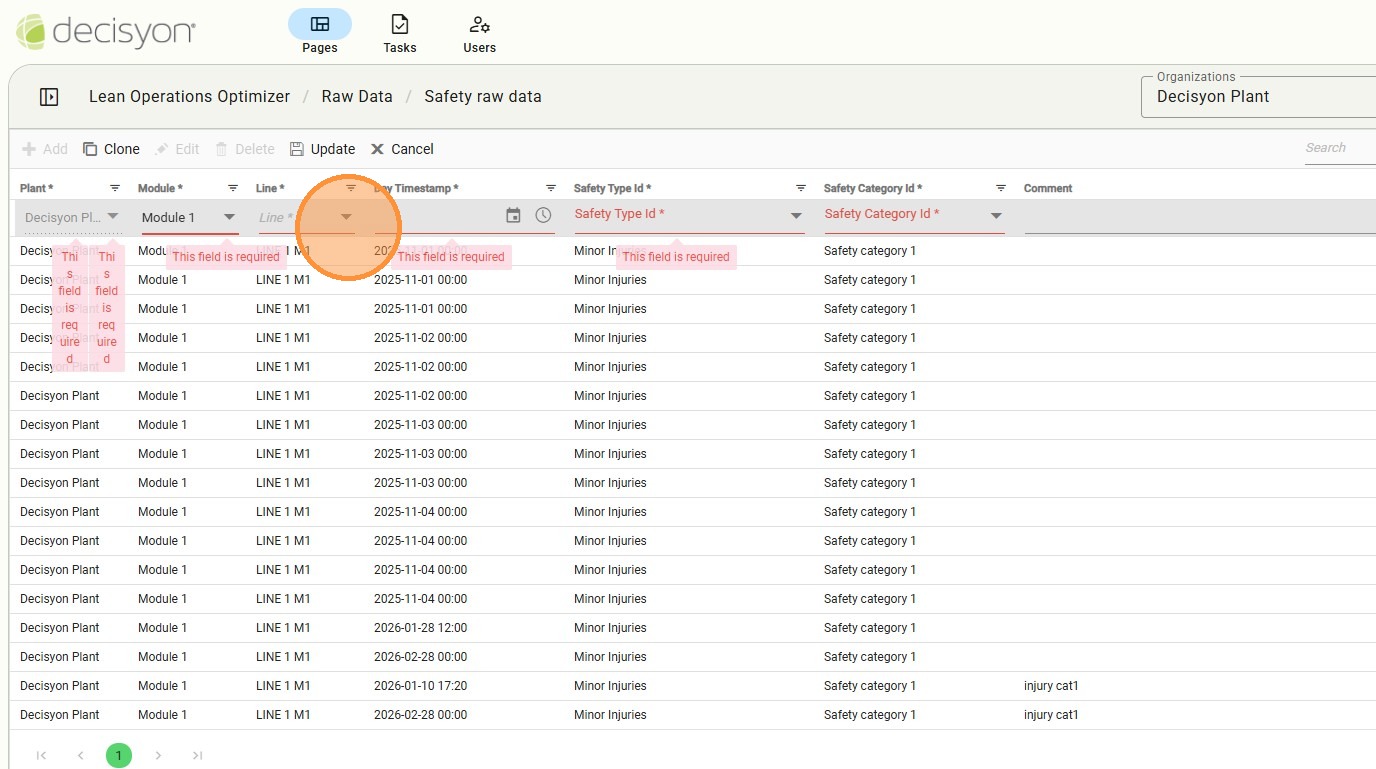
Choose the exact line (e.g., LINE 1 M1) for the safety entry.
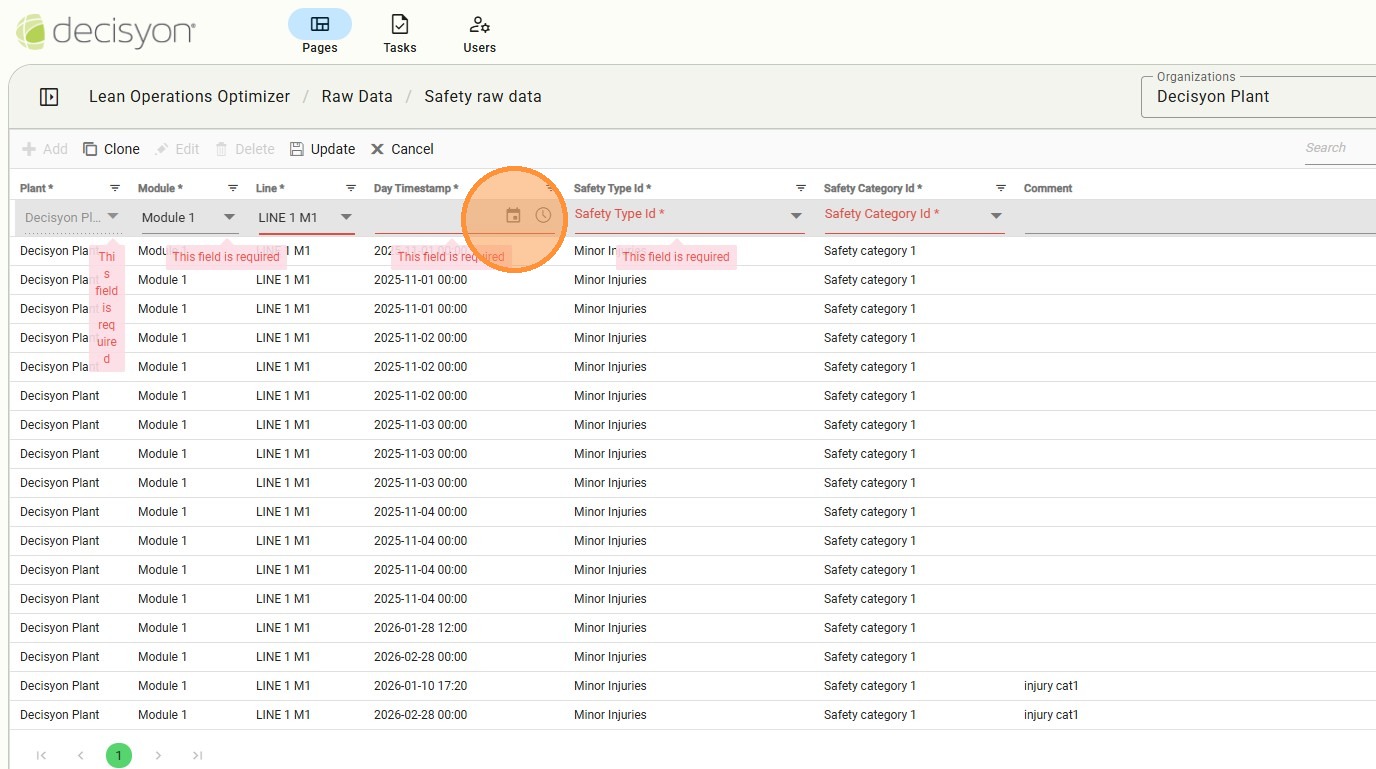
Temporal Timestamping
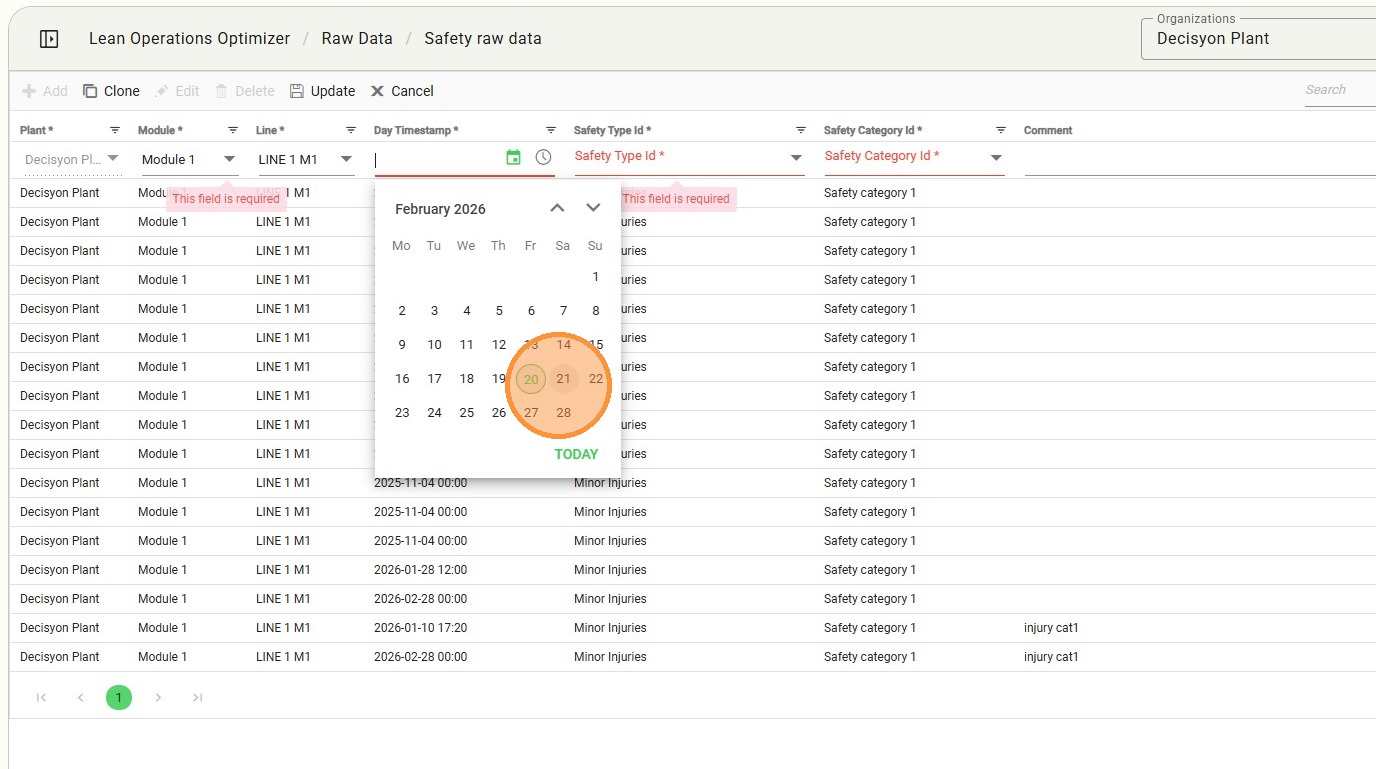
Use the date picker to assign a precise timestamp to the safety event.
Select the specific day (e.g., February 21, 2026) for chronologically accurate safety reporting.
Safety Type Classification
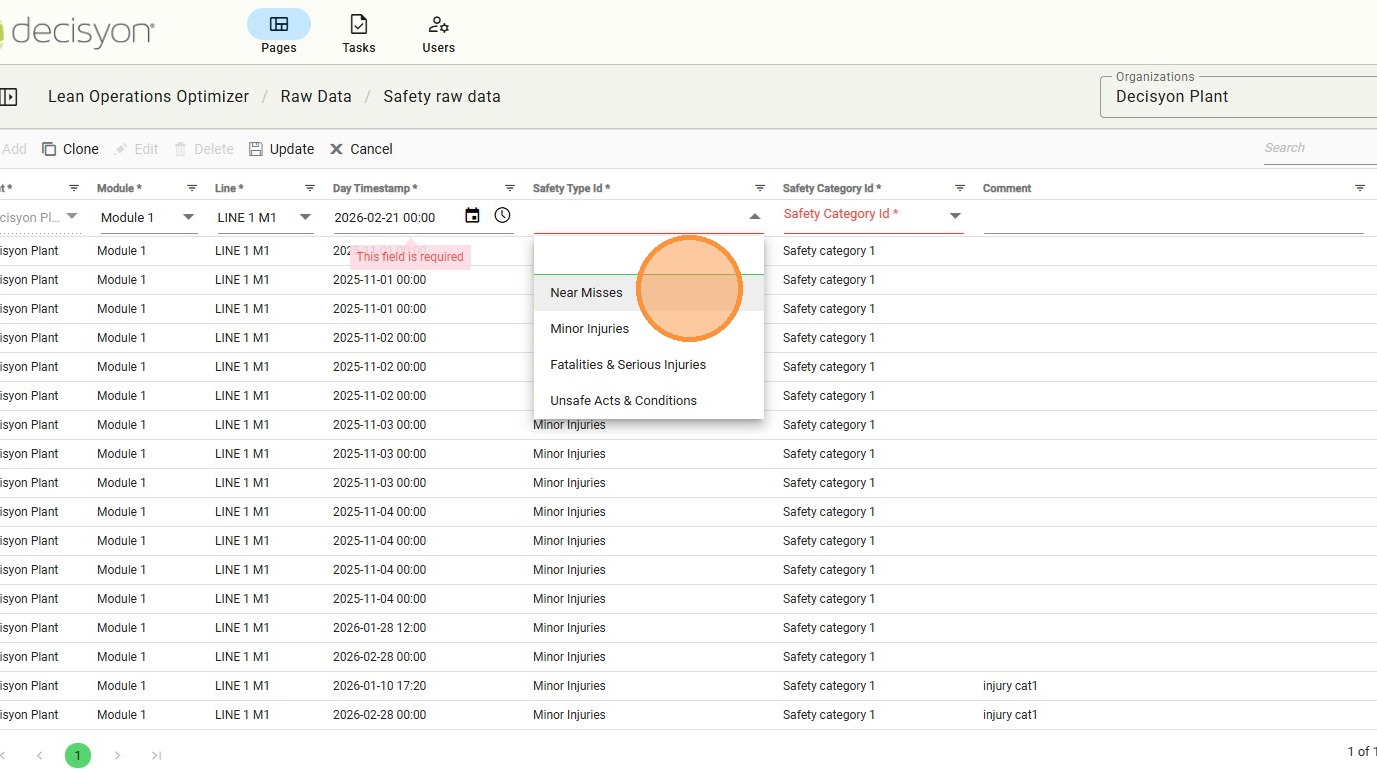
Select the high-level safety type (e.g., Incident, Near Miss, Hazard) to categorize the severity.
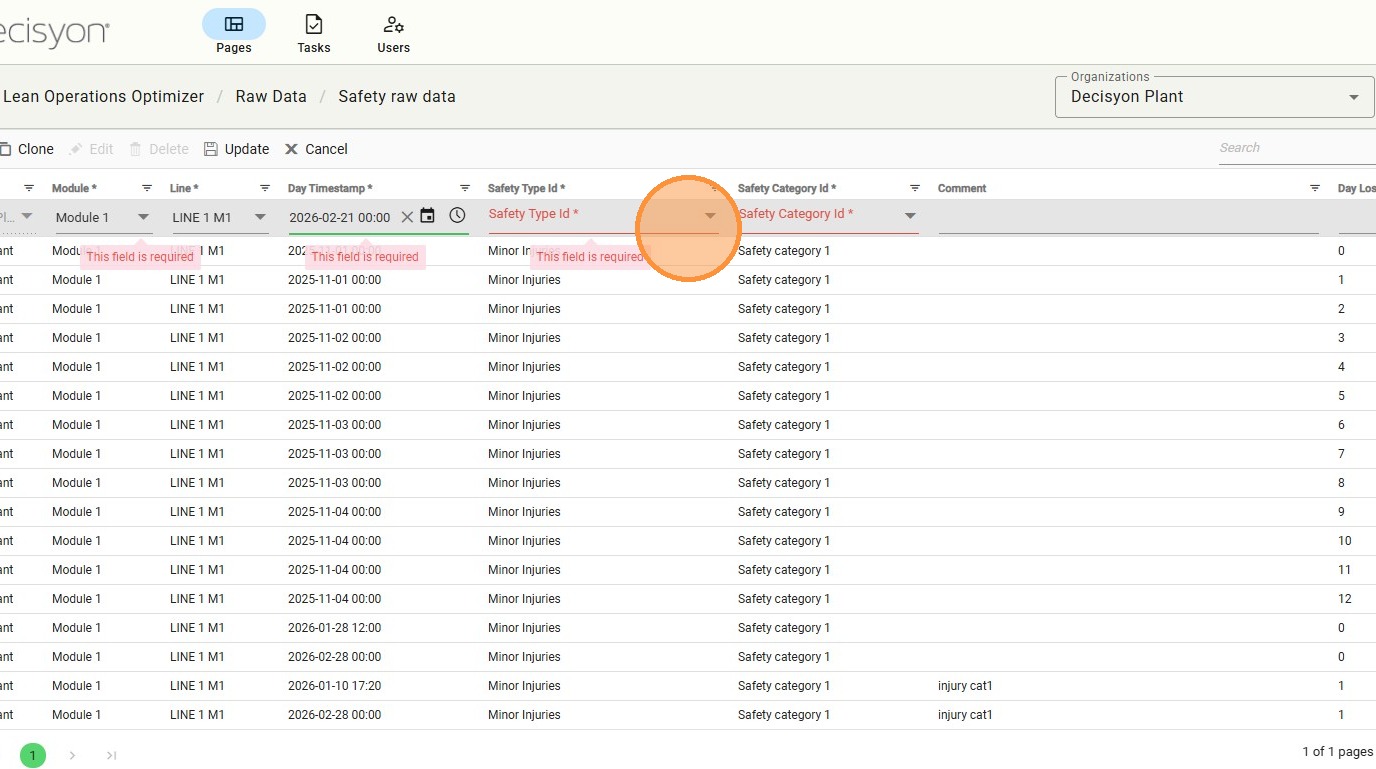
Categorizing the entry as a "Near Miss," a critical KPI for preventative safety management.
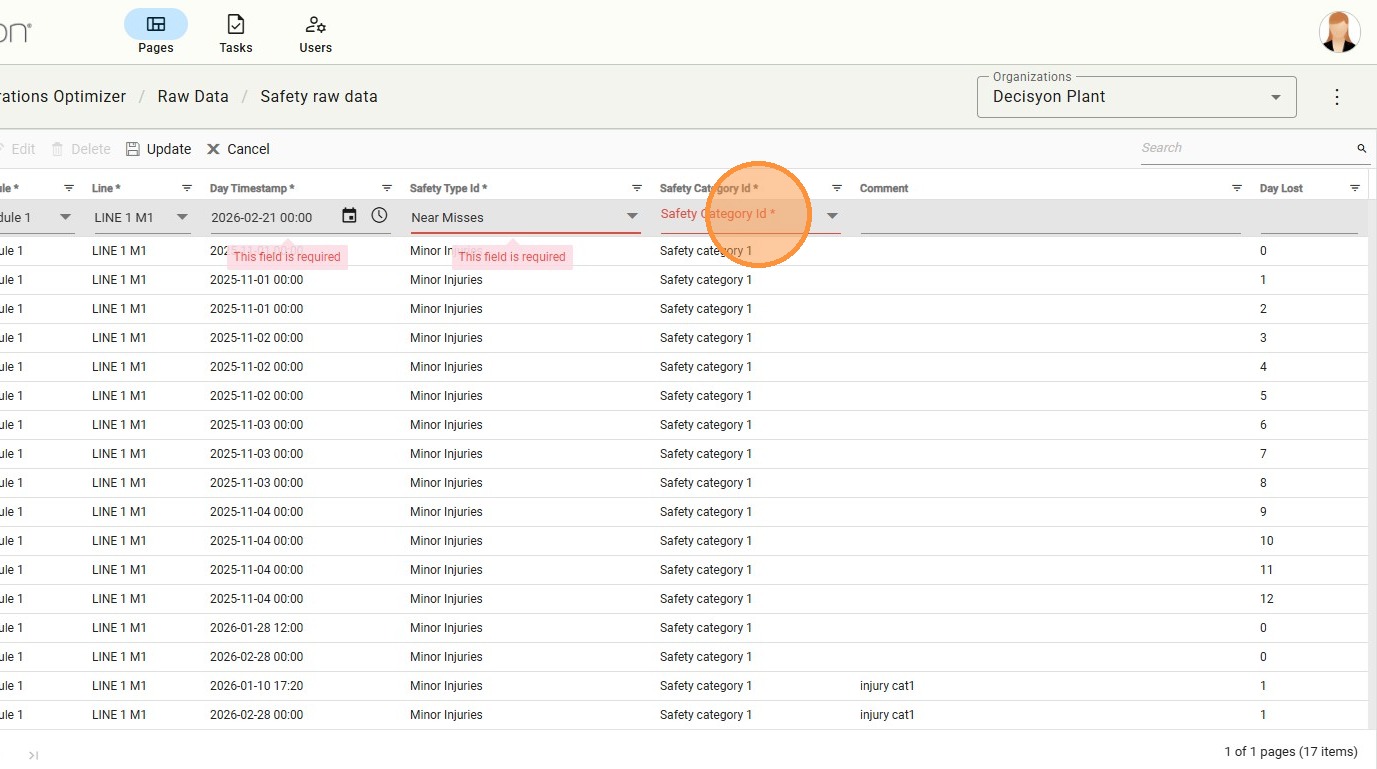
Category Association
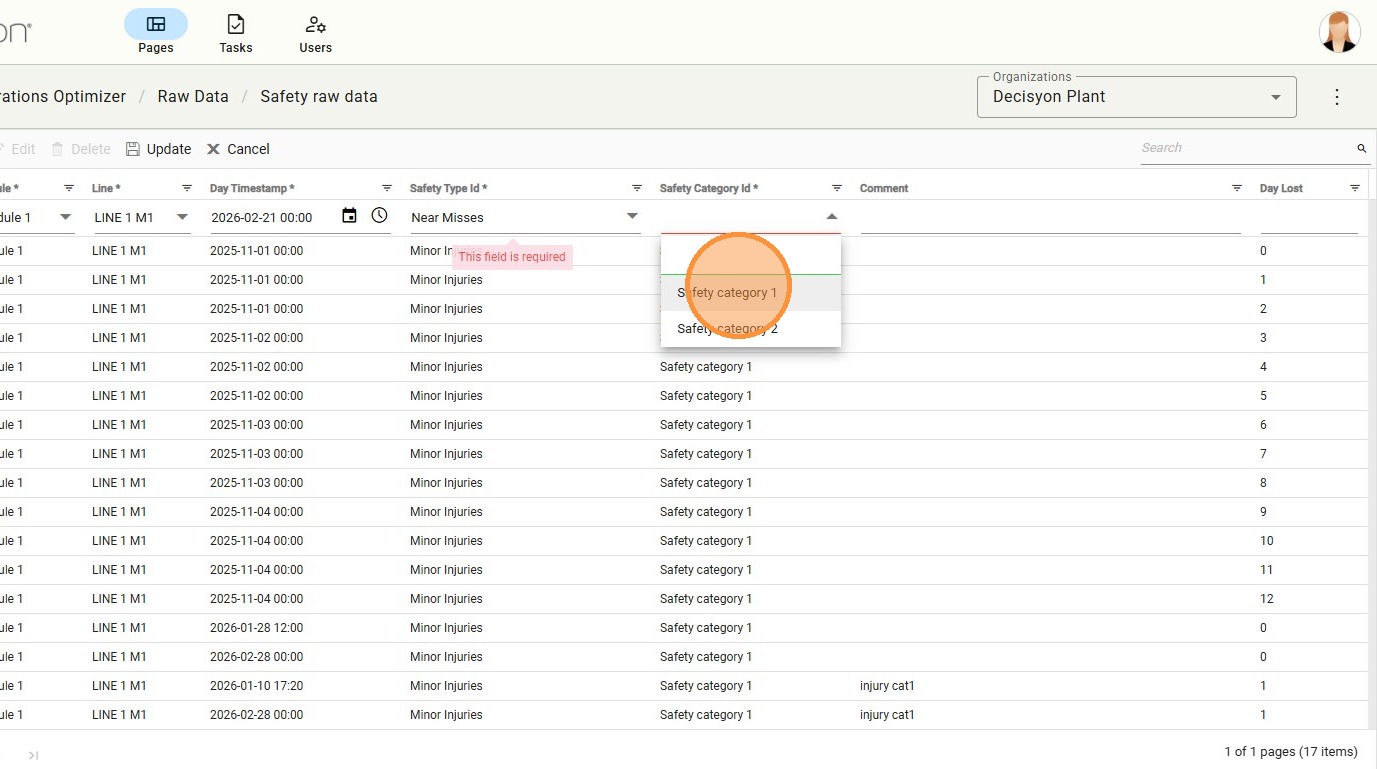
Link the entry to one of the pre-configured safety categories for granular reporting.
Complete the safety entry with specific category details and optional descriptive comments for auditing purposes.
Last updated