
Operational Setup
Add Shifts and Plant Configuration
Overview
The Operational Configuration module in Decisyon LOOP serves as the vital link between the static plant structure and dynamic daily production. Once the physical hierarchy (Plants, Areas, Lines) is defined, this module is used to orchestrate the human and temporal resources required for operation.
The core business logic revolves around three pillars:
Temporal Governance: Defining Shift Patterns (recurring templates) and specific Shift Definitions (the actual execution times). This ensures that every hour of plant operation is accounted for in terms of KPIs and attendance.
Resource Mapping: Through Shift-Line Associations, the system creates a digital twin of the work schedule, mapping specific time windows to physical production assets.
Organizational Alignment: Managing Daily Meeting Tiers (T1, T2, etc.). While these tiers are system-defined constants, the interface allows for visual customization (colors) to ensure the platform matches the visual management standards used on the shop floor.
This synchronization is critical for accurate KPI calculation, as it allows the system to distinguish between planned production time, exceptional Non-Working Days, and scheduled downtime.
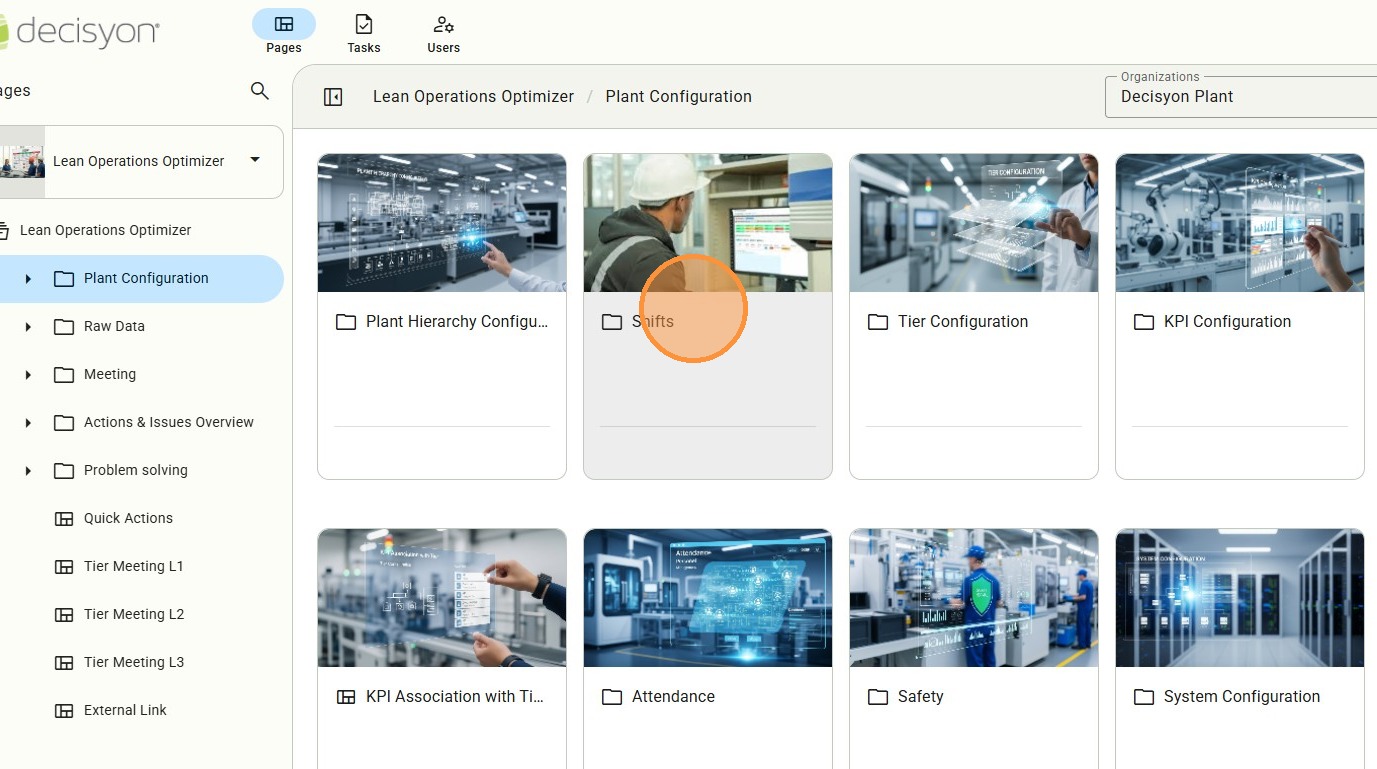
How to...
Shift Pattern
The process begins with the definition of Shift Patterns—the structural models of work hours. This is the interface used to define the "Patterns" or templates that represent the standard work models used across the organization.
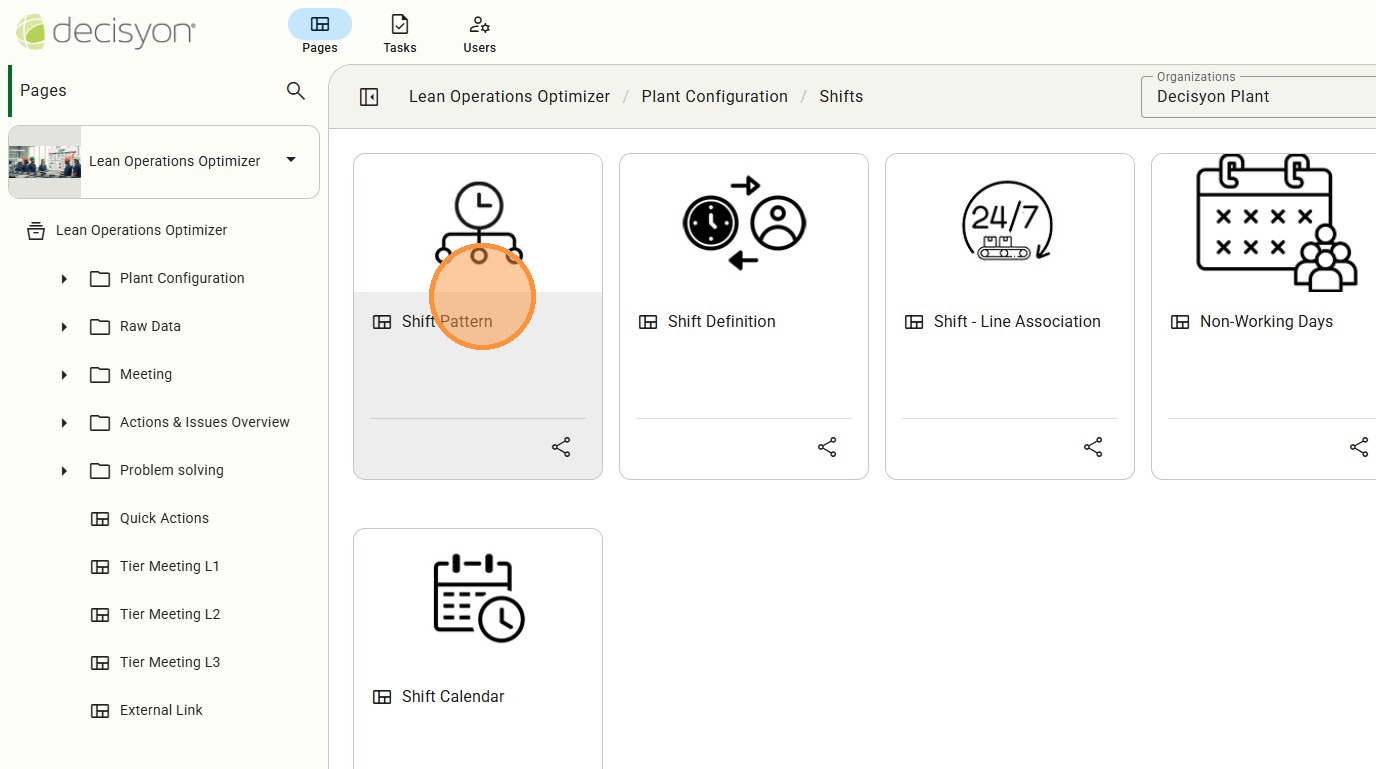
Add Shift Pattern
This is the creation dialog where new shift patterns are registered, providing the foundation for individual shift assignments. Users define the pattern name and logic that will later be populated with specific time intervals.
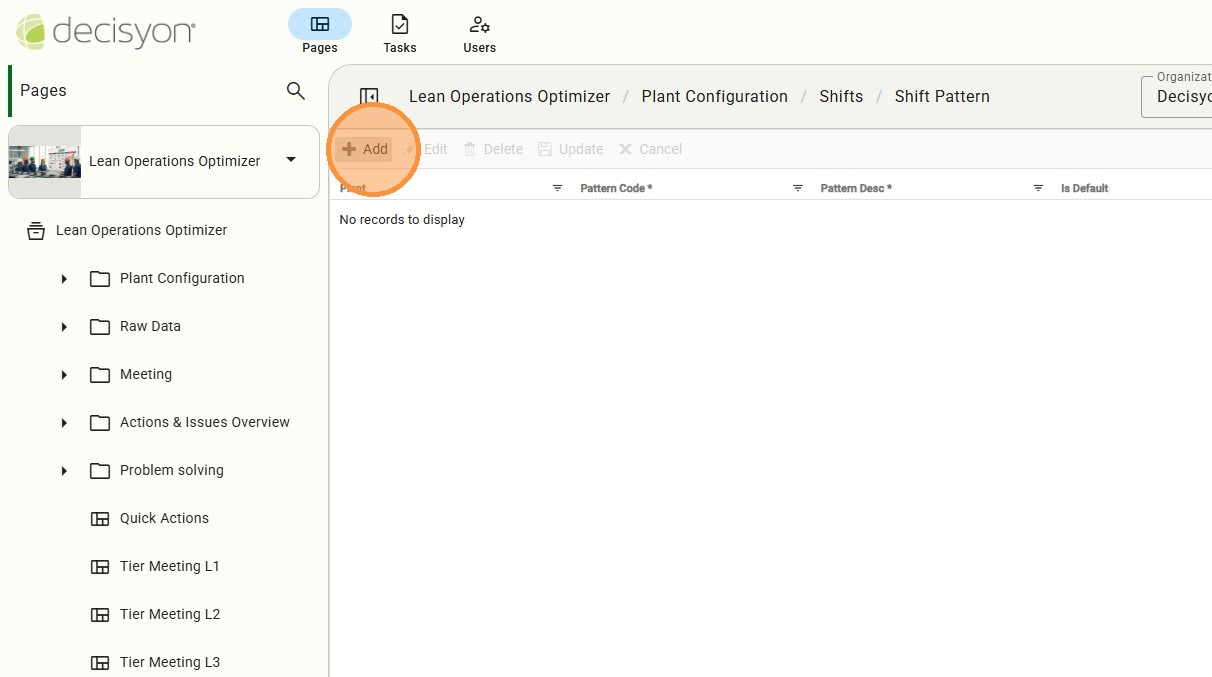
Navigation Breadcrumb (Shifts)
A navigational control is alwasys available to return to the main operational configuration folder and access the other shift-related settings.
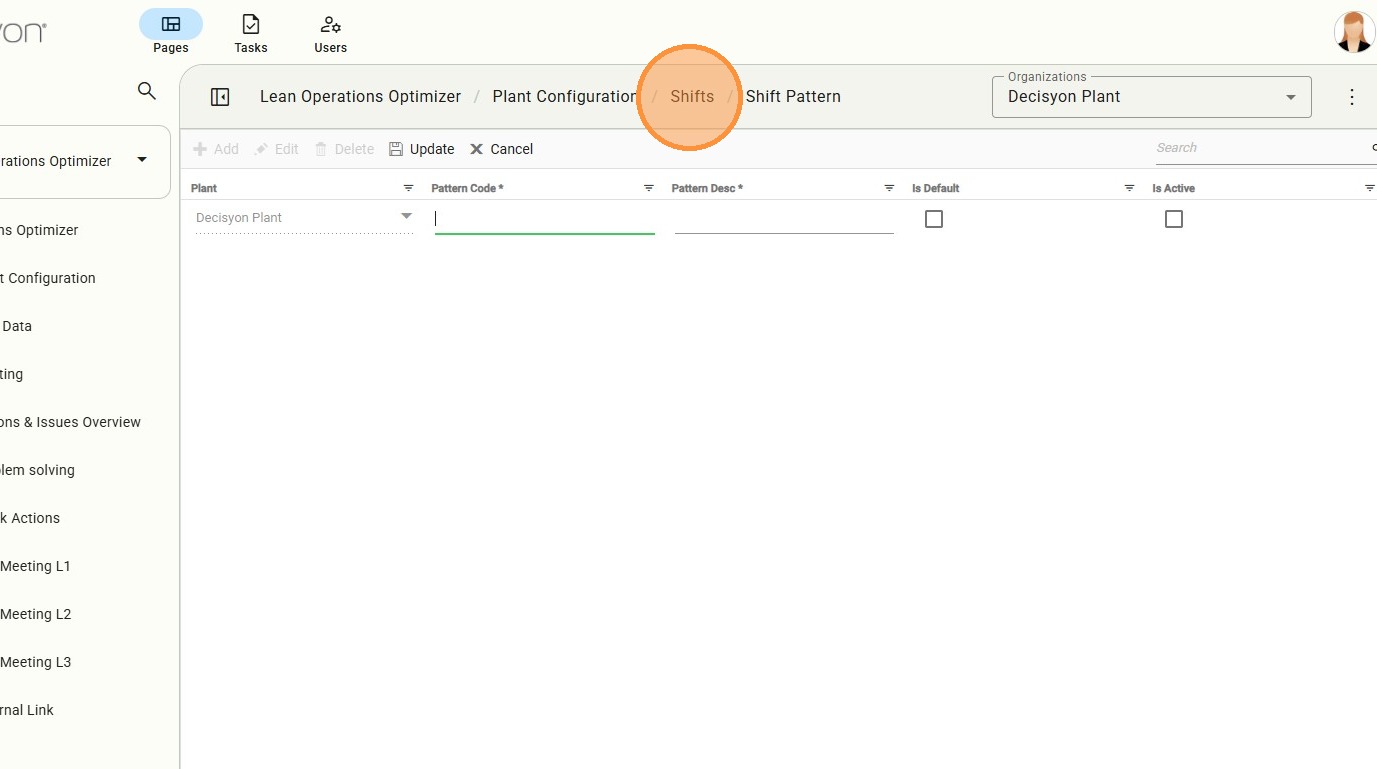
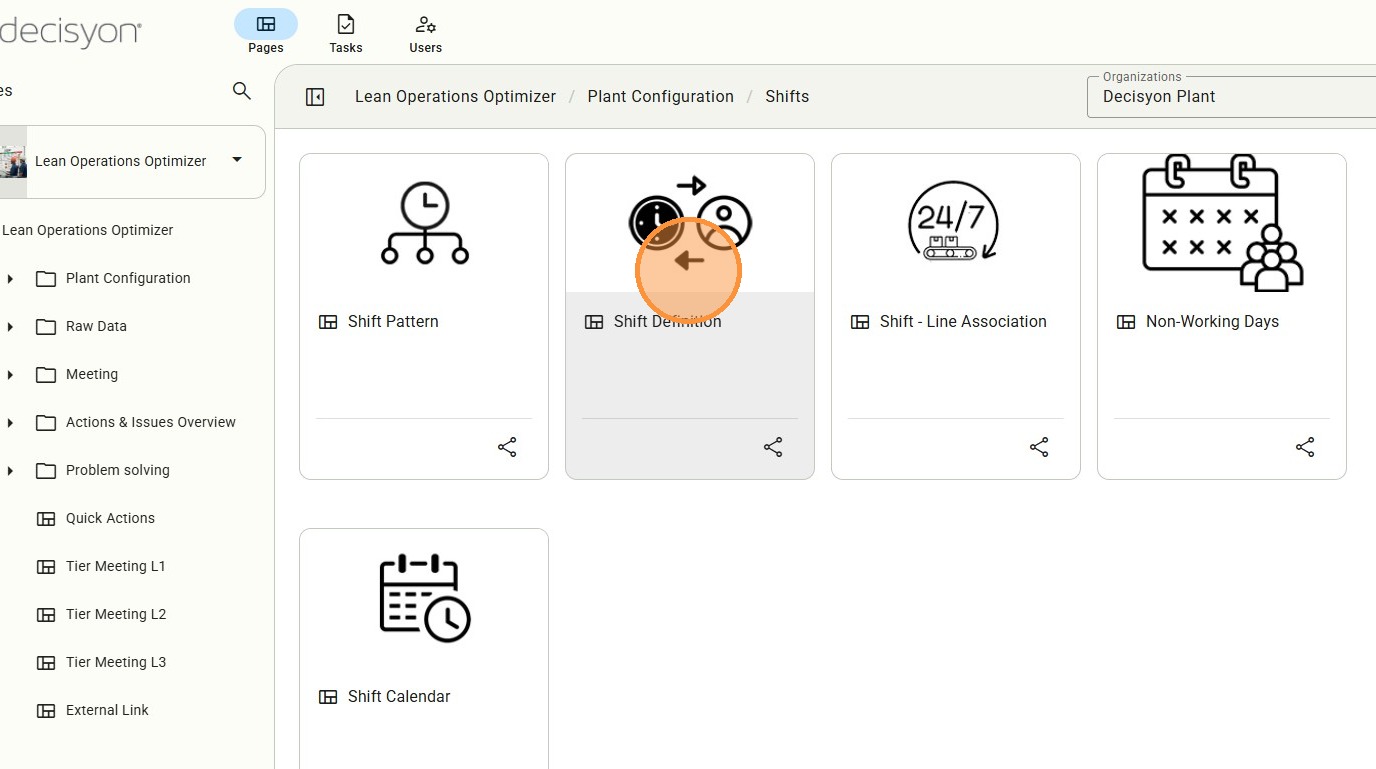
Shift Definition Module
Select Shift Definition to access the workspace where individual shifts are configured. In this view, users specify codes, descriptions, and link the time slot to a specific pattern.
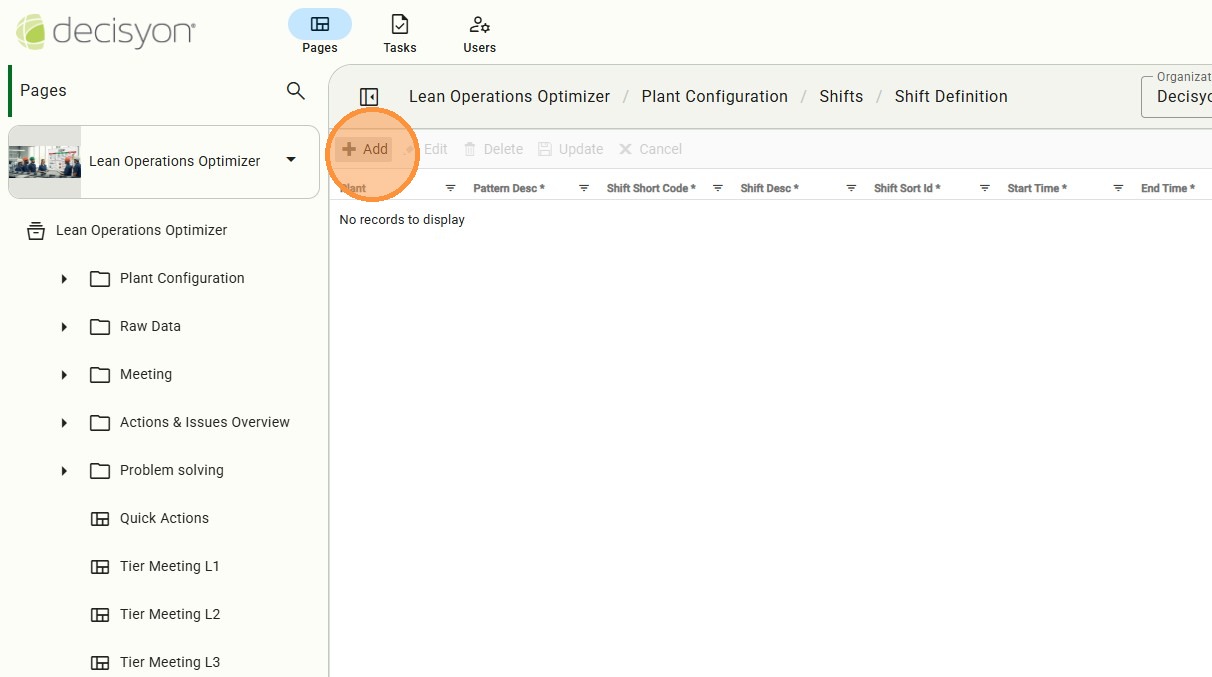
Add Shift Definition
In this page you can configure form for individual shift parameters. Users must input the precise Start Time and End Time (Format: 00:00:00) to ensure accurate attendance and KPI tracking.
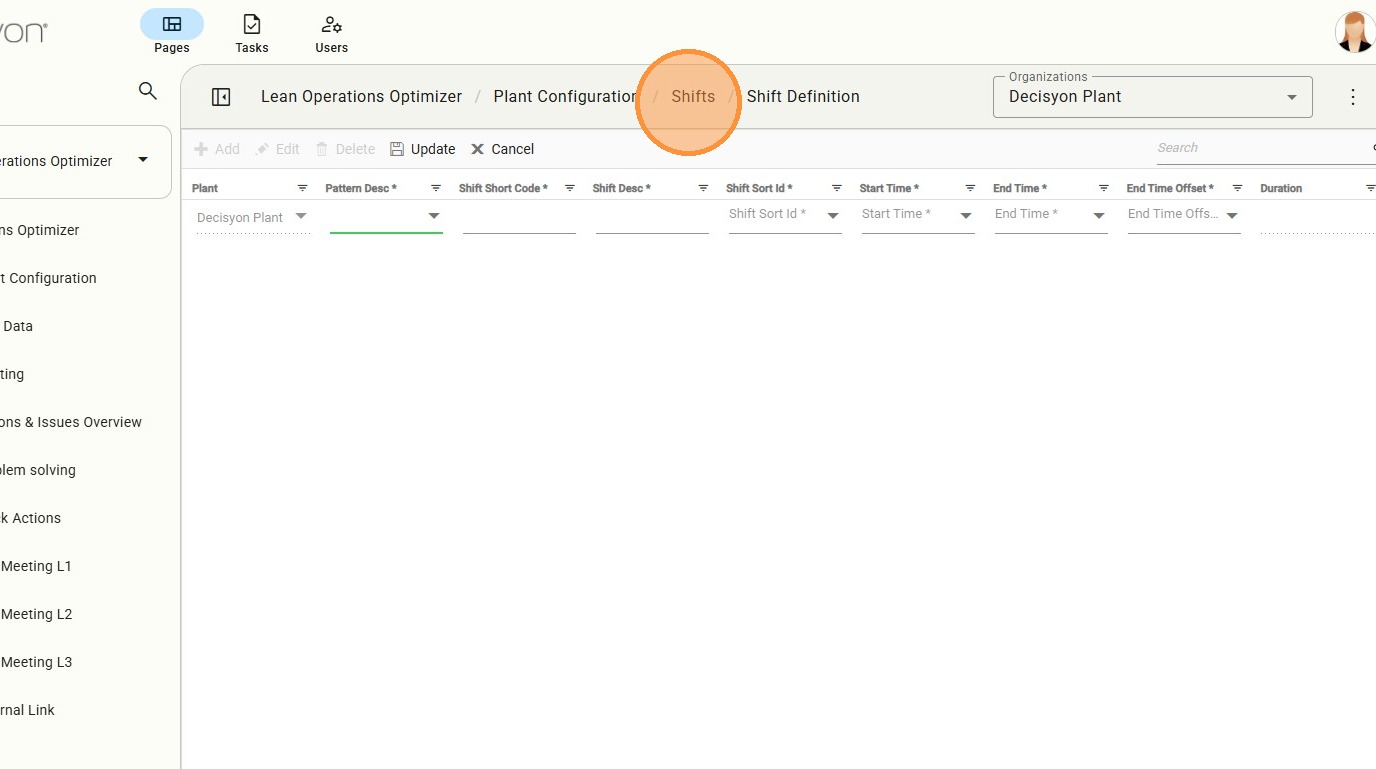
Navigation Breadcrumb (Return)
A navigational control is available to exit the shift detailing process and return to the main configuration list.
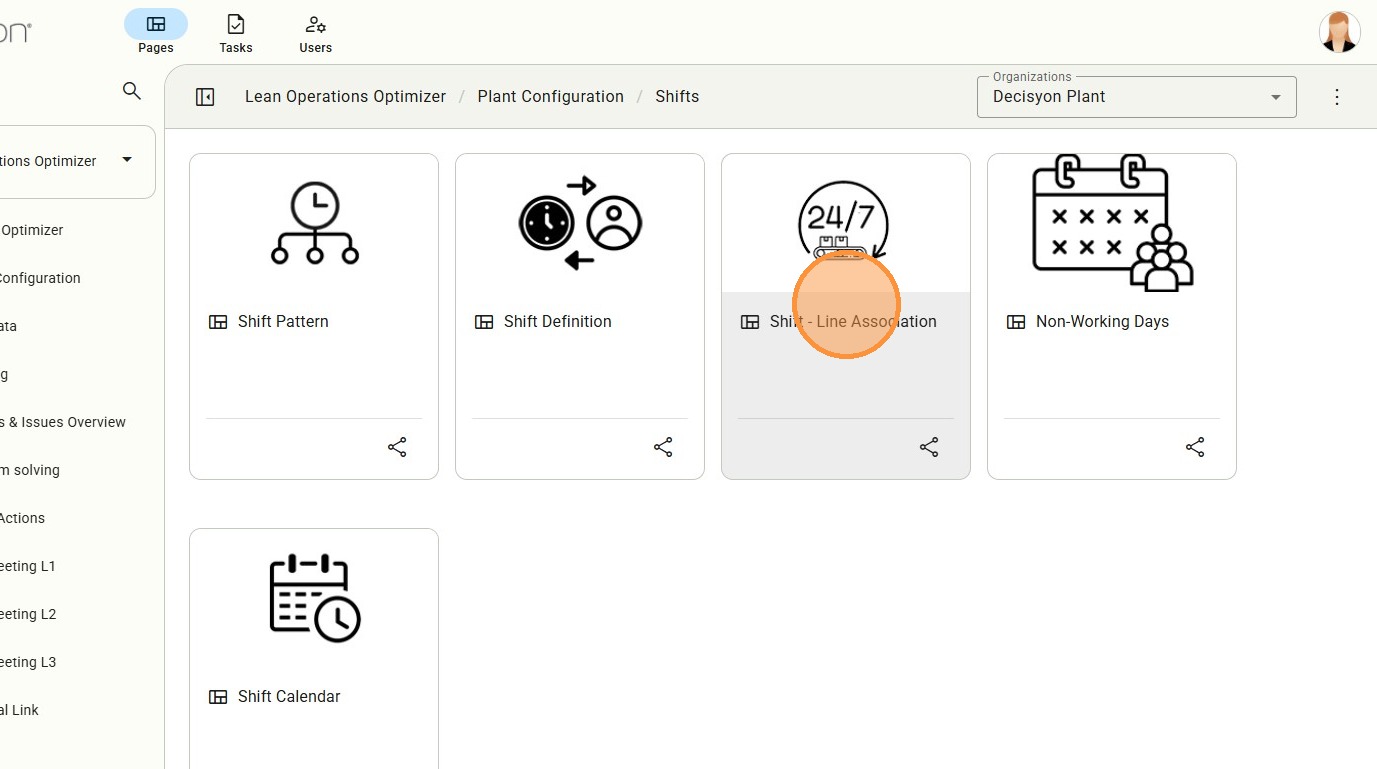
Shift-Line Association
Access to the Shift-Line Association.This module is where shifts are assigned to physical assets. It allows the system to know which shift pattern is active for a specific production line at any given time.
Association Workspace
Here there is the visual overview of active shift-to-line mappings, essential for verifying that all production areas have assigned coverage. This interface ensures that there are no gaps in the production schedule across the various lines.
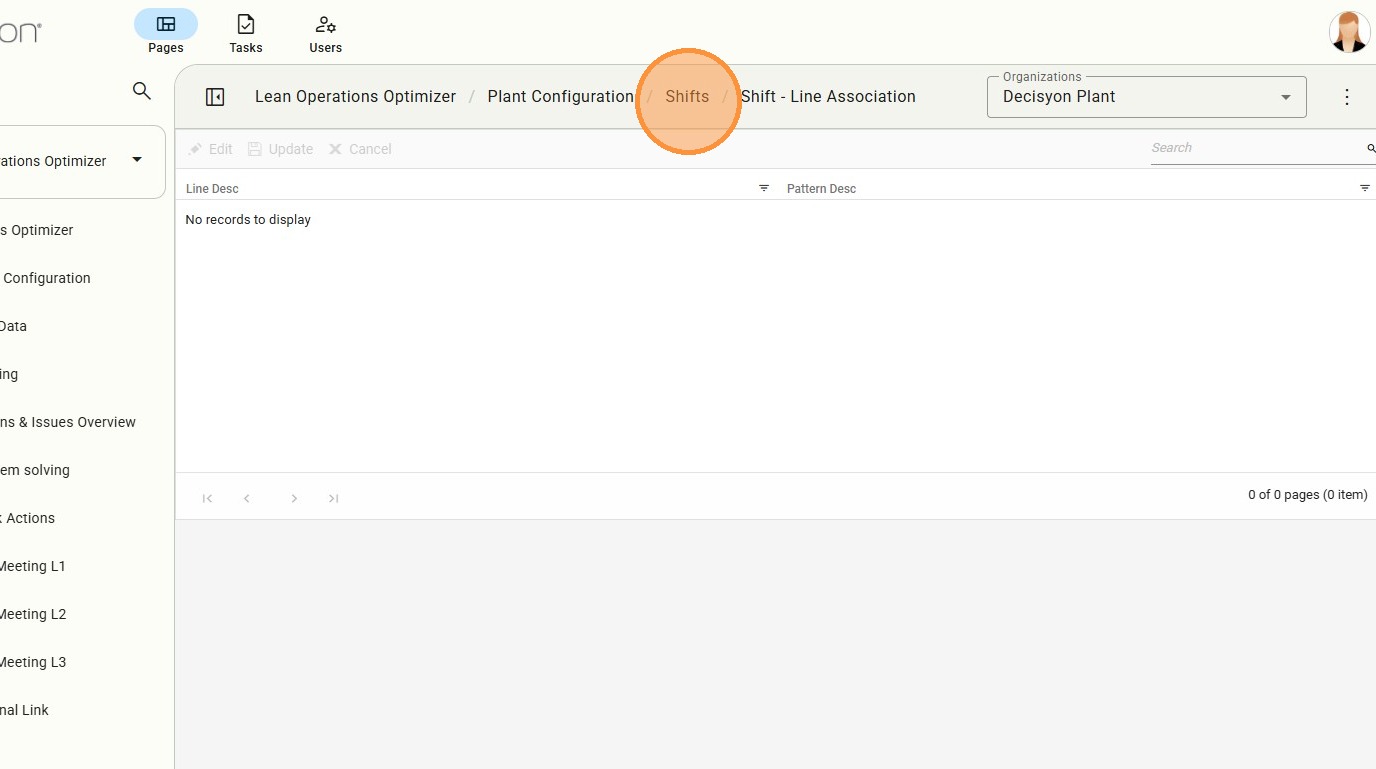
Select the navigational toreturn to the main configuration list.
Non-Working Days Configuration
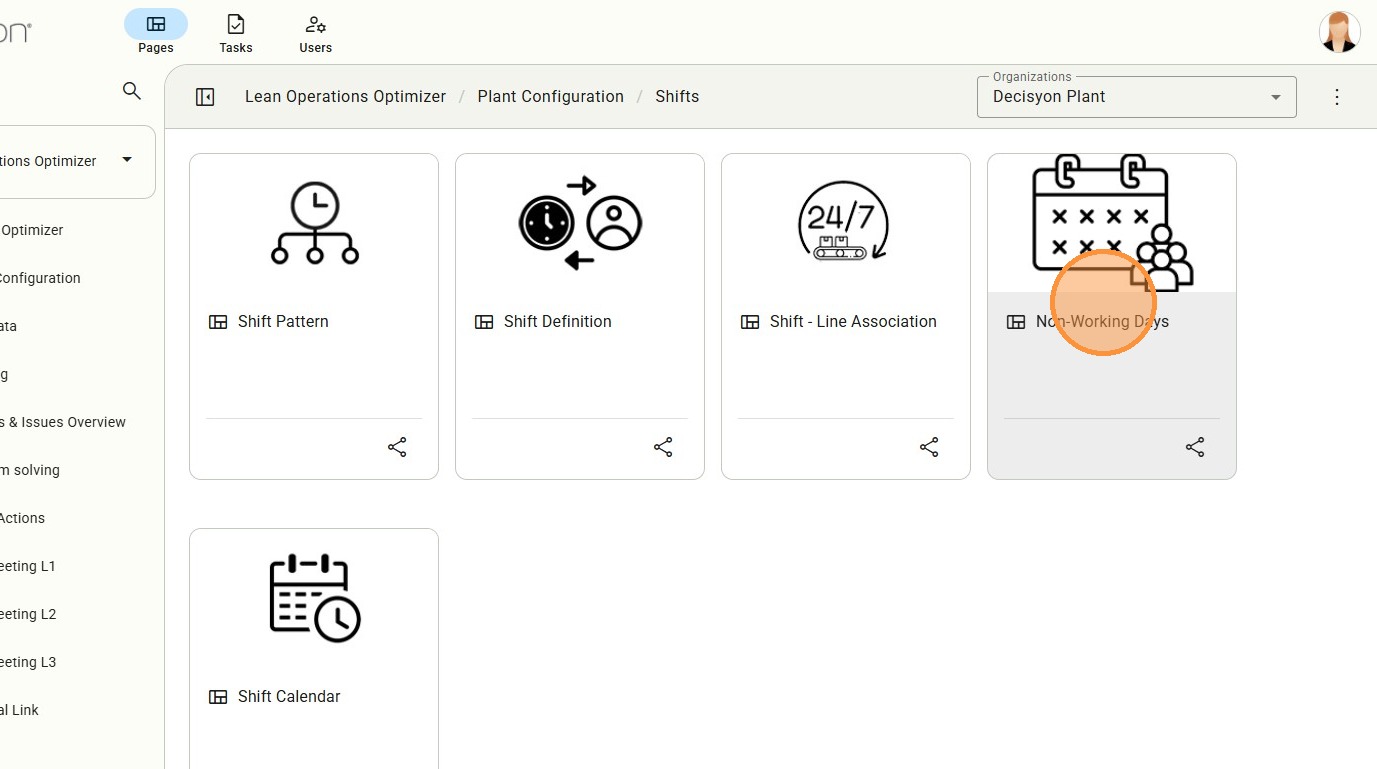
From Non-Working Days menu you can access to a specialized calendar interface where users can define exceptional non-working days (holidays, planned maintenance, or extraordinary plant closures) that override standard shift patterns.
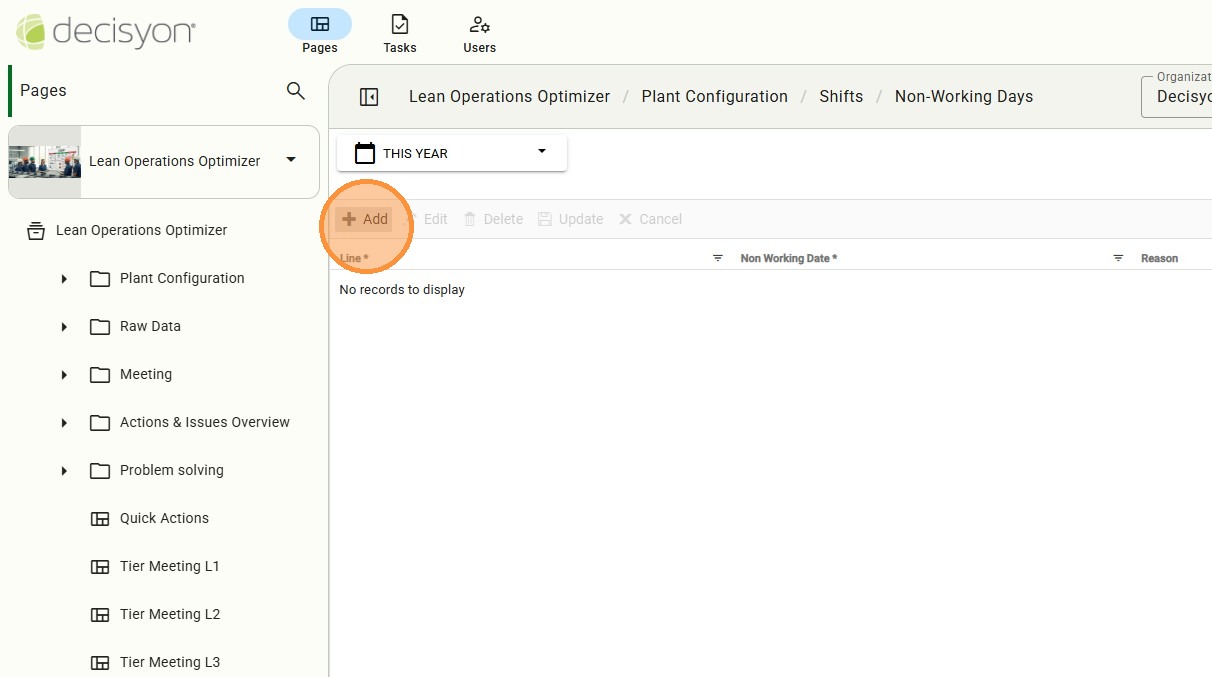
Add Non-Working Day
In this interactive dialog it is possible to selec specific dates from the calendar to be marked as inactive for plant operations.
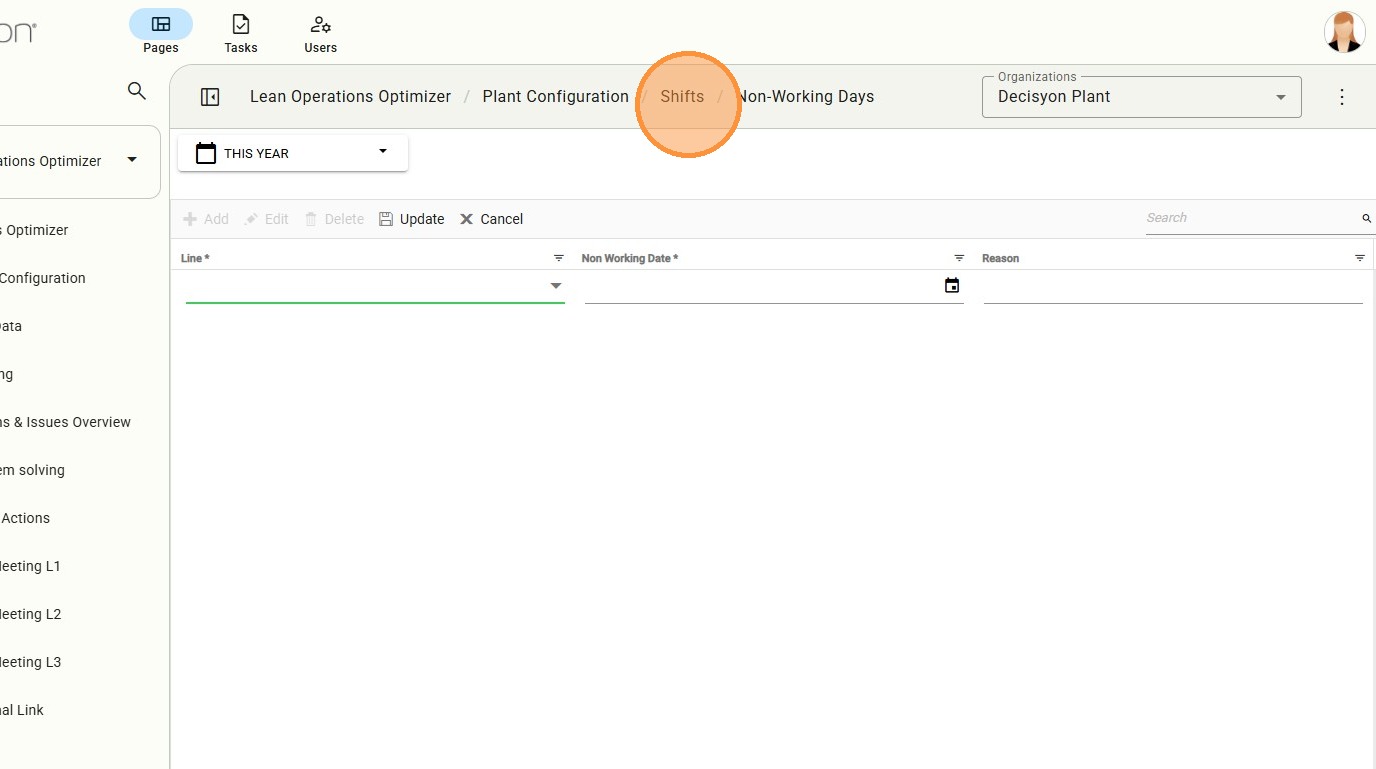
The navigation element is used to return to the core operational configuration list.
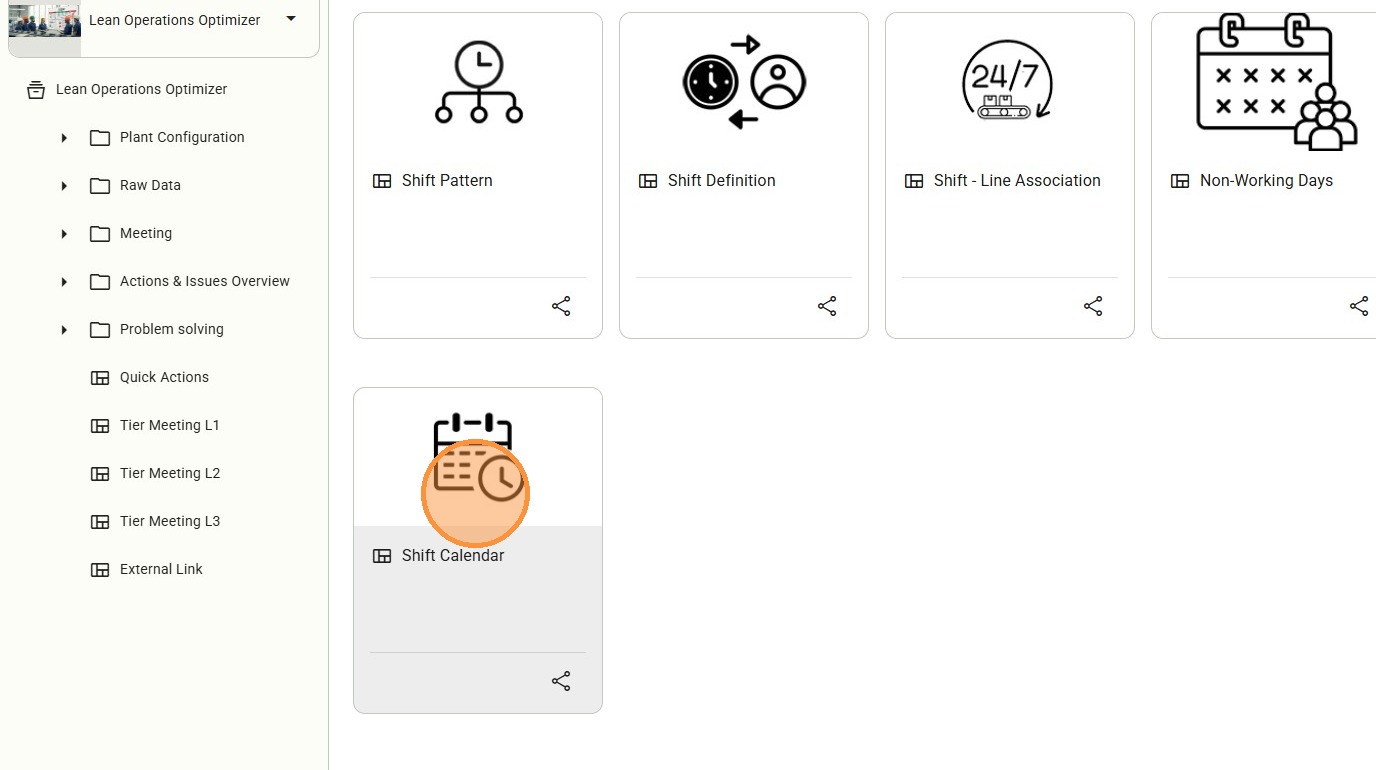
Shift Calendar
Select Shift Calendar to access a comprehensive visualization module that displays a master list of lines and all associated shifts, providing a clear timeline of plant activity.
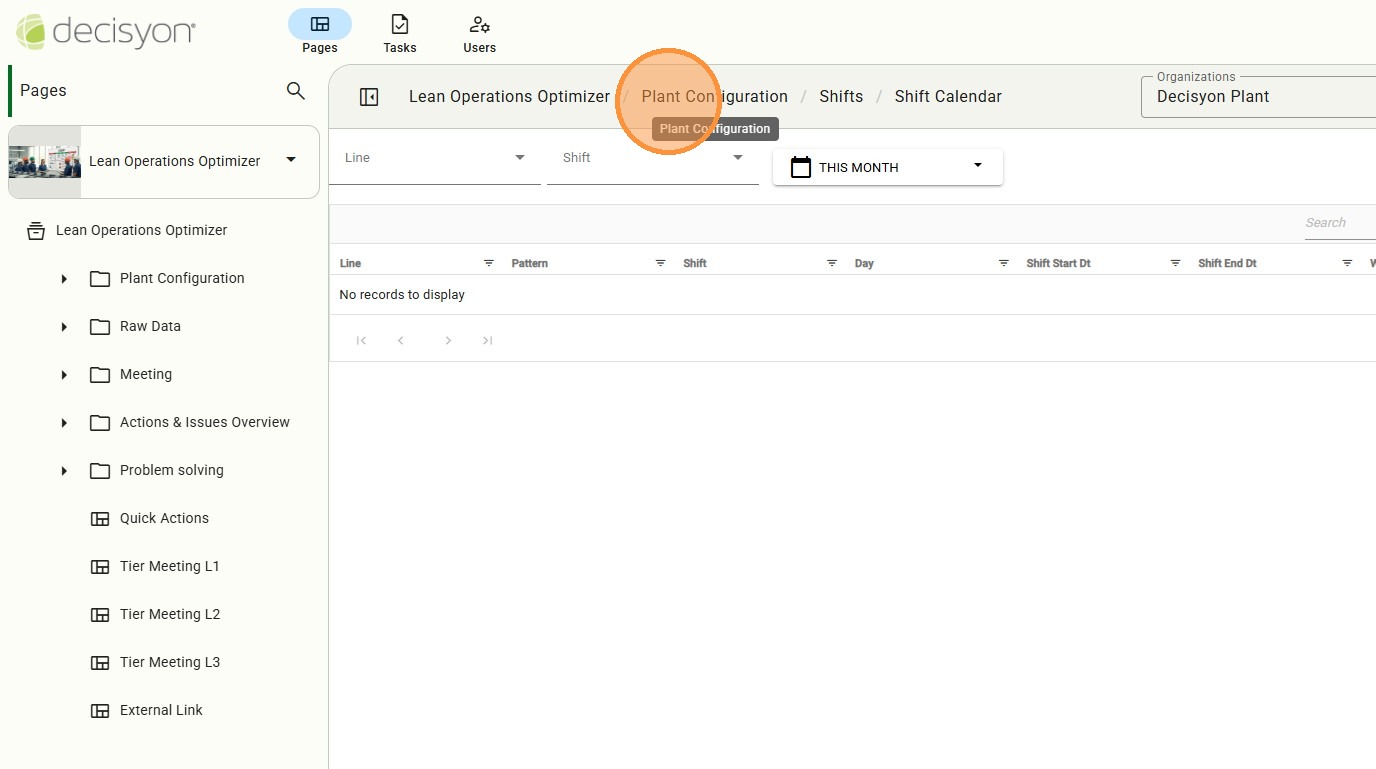
In the navigational control, select Plant Configuration as the final exit point that returns the user to the global plant configuration settings once operational and shift parameters are saved.
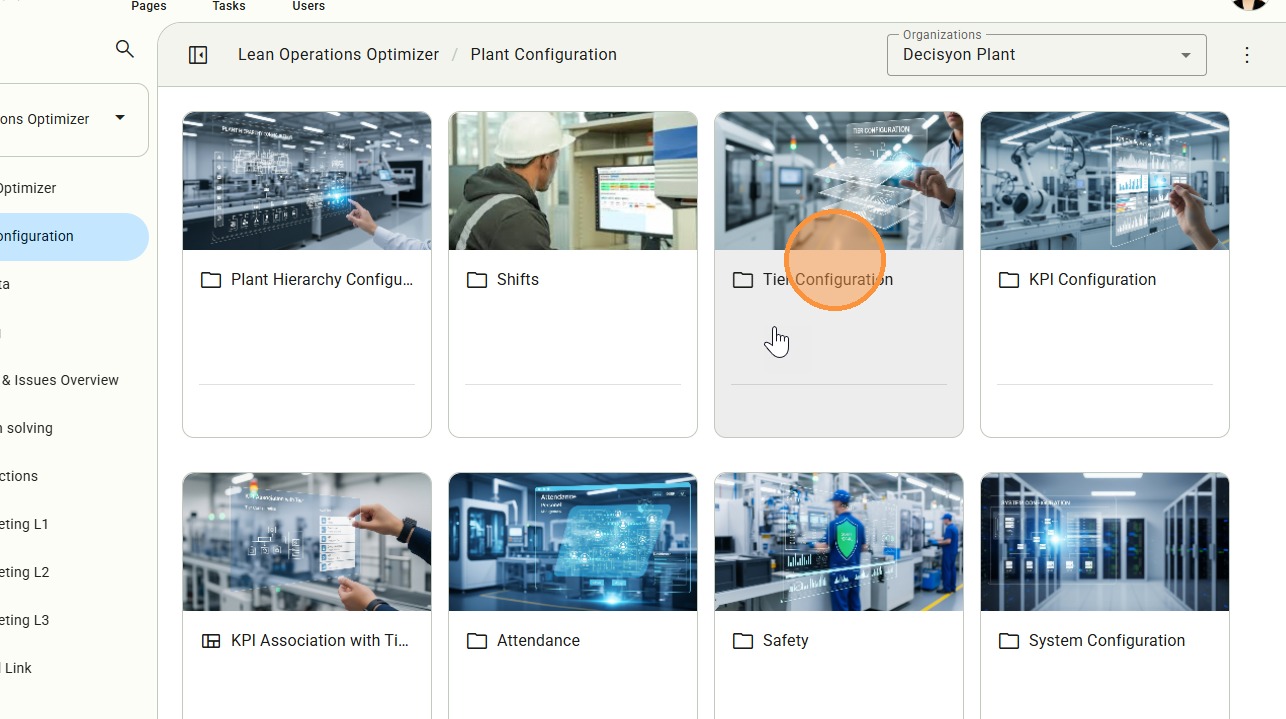
Meeting Tier Settings
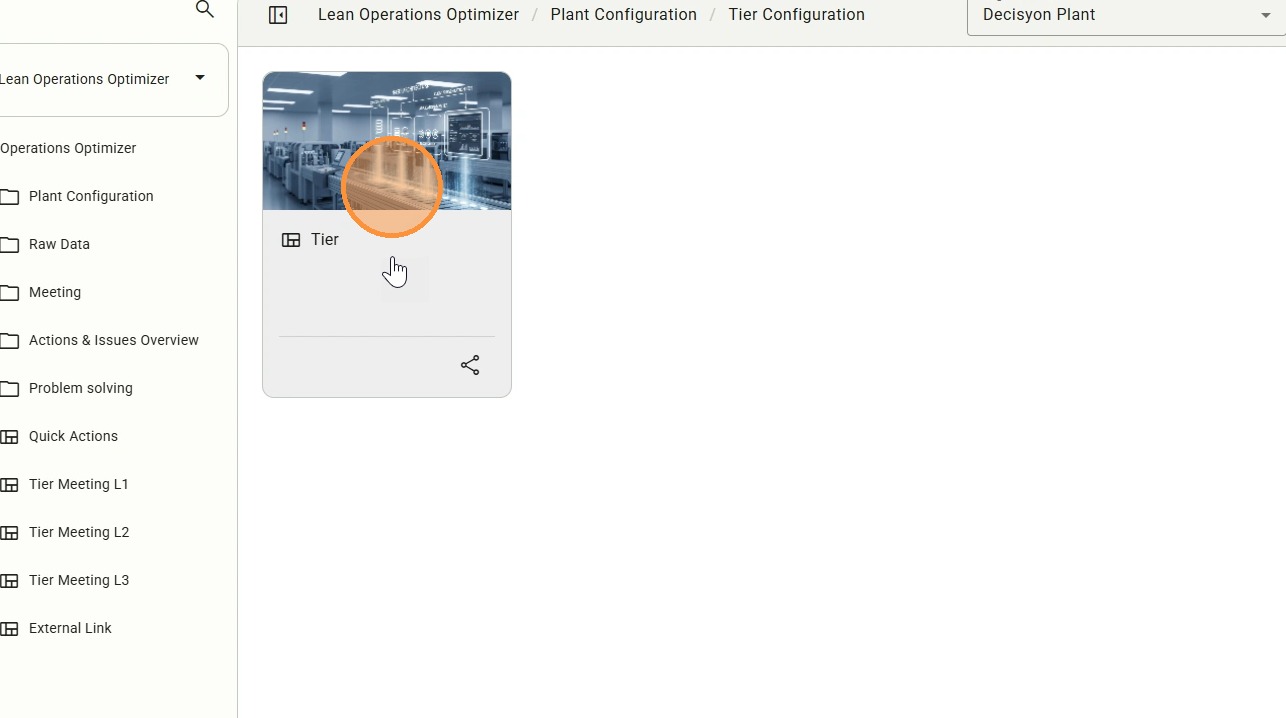
Tier is the sub-menu for accessing the Daily Management System (DMS) tiers. These tiers are system-generated data points used for cross-functional communication.
Tier Monitoring and Customization
This is the monitoring interface for active meeting tiers. While the hierarchy is fixed, users can edit the Color Coding associated with each tier to match the company’s visual management identity.

Last updated